

Energy Plans Page - Where do I find my Energy Plan Time of Use times?
If you are on a Time of Use (TOU) energy plan you will have multiple electricity charges on your bill for sections like peak, off-peak and shoulder.
These sections refer to different rates you pay for electricity depending on the time of day and whether it is weekday or weekend. The times that each rate apply to are different depending on your energy retailer and location so we need you to enter them into our dashboard for us to accurately calculate your savings.
Location 1: Your Last Energy Bill
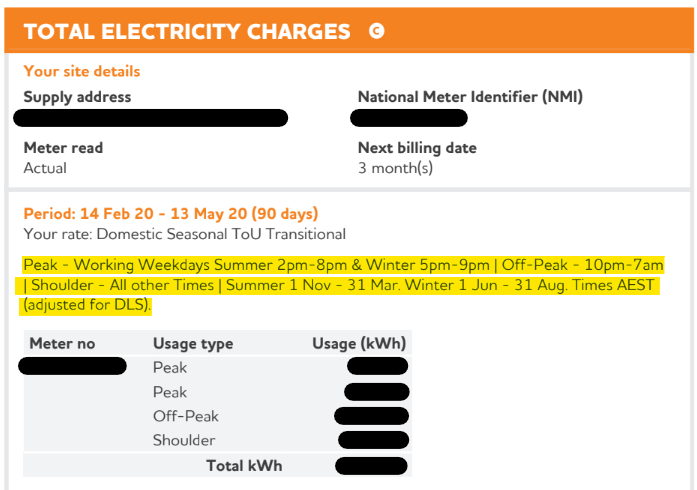
Section titled “Location 1: Your Last Energy Bill”Some retailers will show the time of use times on their energy bill. It is likely to be at the top of the section which gives the breakdown of electricity charges as in the below Origin Energy bill. Look for any information which contains times of day (e.g. 7am) or key words like ‘shoulder’ and ‘off-peak’.
Location 2: Energy Made Easy
Section titled “Location 2: Energy Made Easy”Energy Made Easy is a government website used to compare all electricity plans on offer in all states of Australia except Victoria and Western Australia. It contains all the plan information including the TOU times. Follow the steps below to find your plan.
- Go to the Energy Made Easy website - https://www.energymadeeasy.gov.au/
- Select E**lectricity or Electricity and Gas, enter your postcode, household size and other information
- Select Continue with no bill or no meter data
- Click on Compare Energy Plans
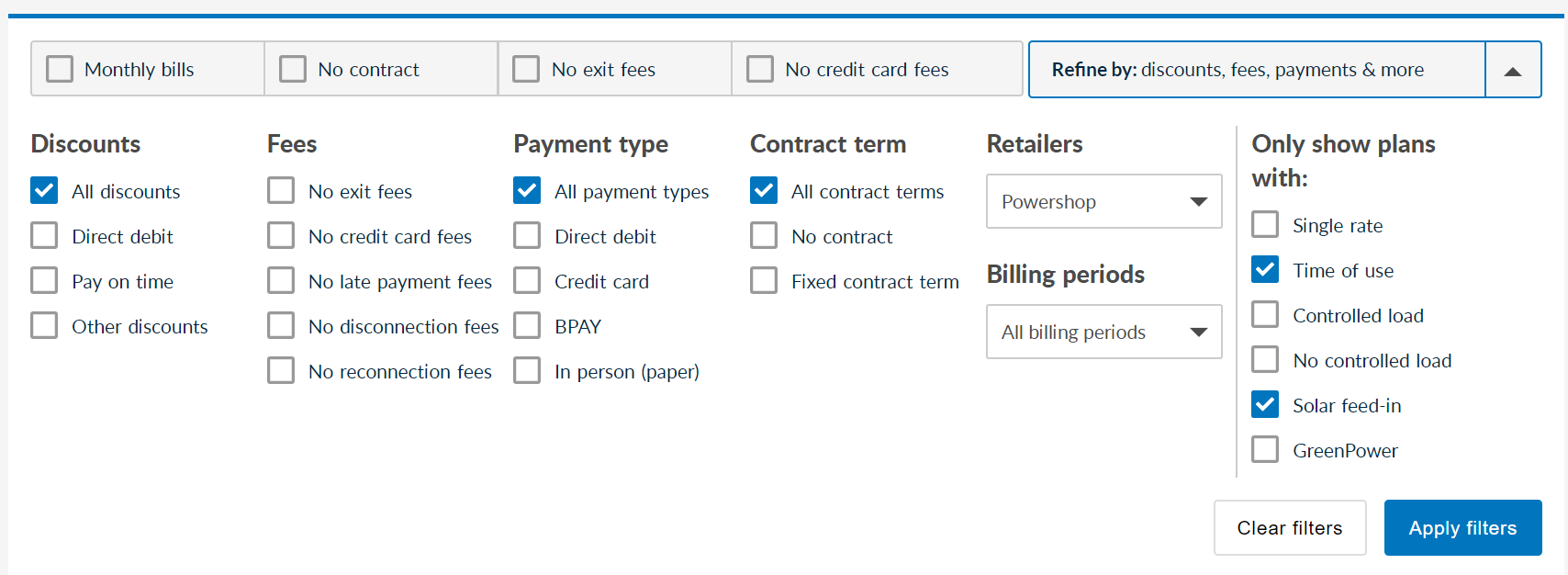
- At the top right of the results page click on Refine by: discounts, fees, payments and more
- Add the following filters (see picture)
-
Retailer - Select your energy retailer
-
Only show plans with - Select Time of useand Solar feed-in
-
If you have a controlled load select the controlled load as well (if you have a controlled load and are located in QLD, NSW, VIC, SA, ACT or TAS, you may be able to add your plan details and controlled load automatically).
-
- Press Apply filtersand view the plans that match the search
- If you can find your exact plan select that - otherwise select any other plan as the TOU times for a retailer in one suburb usually do not vary.
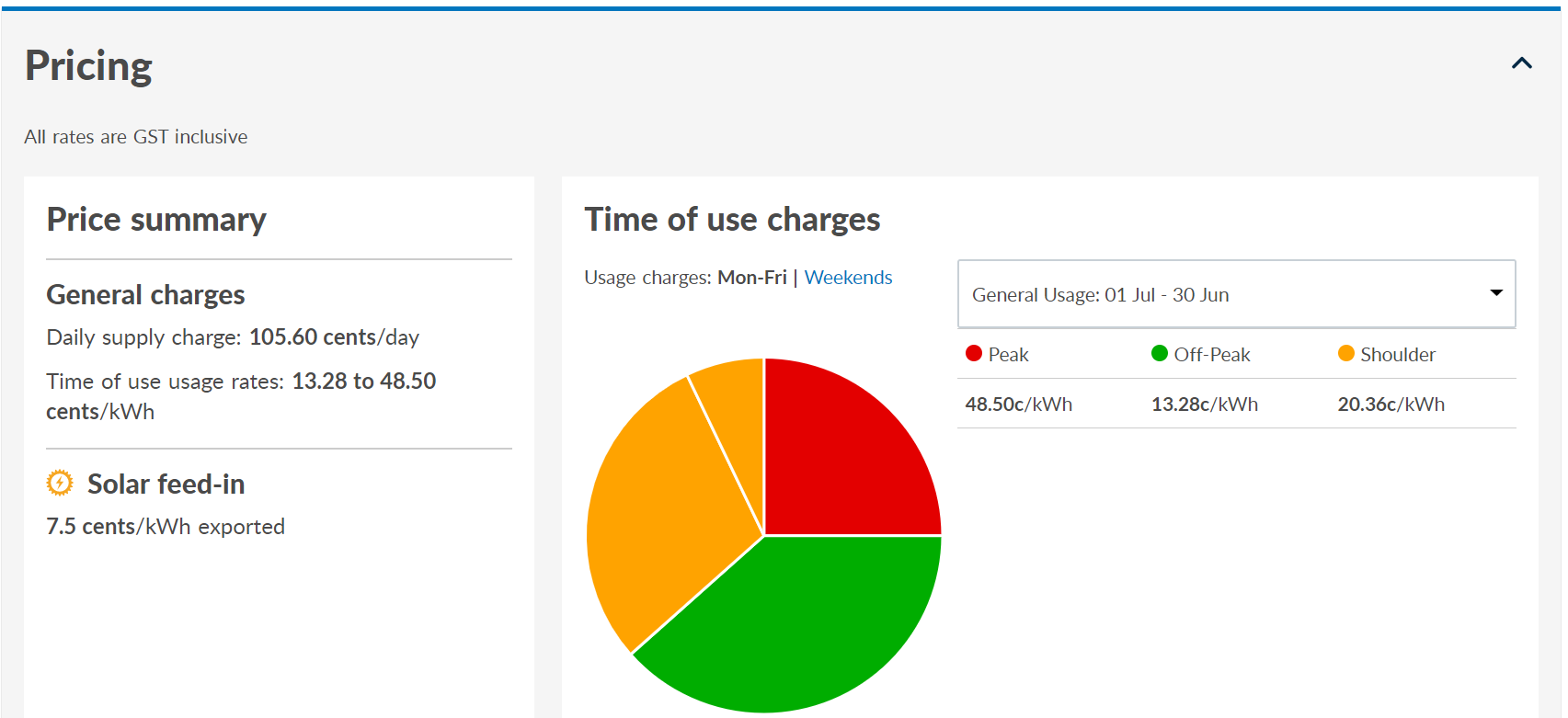
- Scroll down to the Pricingsection. All the information on the time of use times is available here.
-
Look at both Mon-Fri and Weekends
-
Hover over the chart to view the times for each period
-
If on a seasonal rate there will be multiple sections under the drop down menu where it says General Usage: 01 Jul - 30 Jun
-
Location 3: Victoria Energy Compare
Section titled “Location 3: Victoria Energy Compare”The Victorian Government also offers a comparison tool similar to Energy Made Easy which you can use to find your time of use rates. Use the steps below
- Go to the Victorian Energy Compare website - https://compare.energy.vic.gov.au/welcome
- Select Electricity Offers, Home, *I’m moving (so I don’t have a bill)*and input your postcode
- Enter your information about your household and consumption to the best of your ability (Note: this information will not affect your plan coming up)
- Under the Offer typefilter select only Time of use and under the Energy re**tailersfilter uncheck Consider all retailersselect only your energy retailer
-
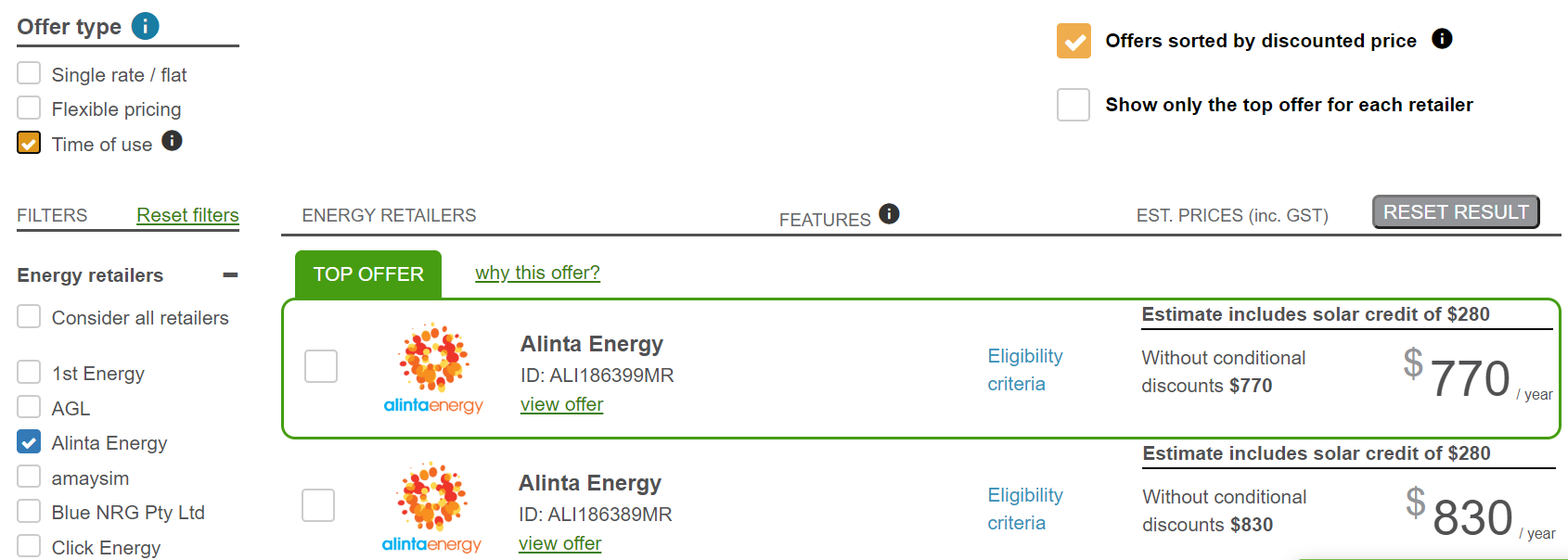
- If you can find your exact plan select that - otherwise select any other plan as the TOU times for a retailer in one suburb usually do not vary. Click v**iew offerto show the details of the energy plan
- Scroll down to Offer rate and details. This section contains the time of use times
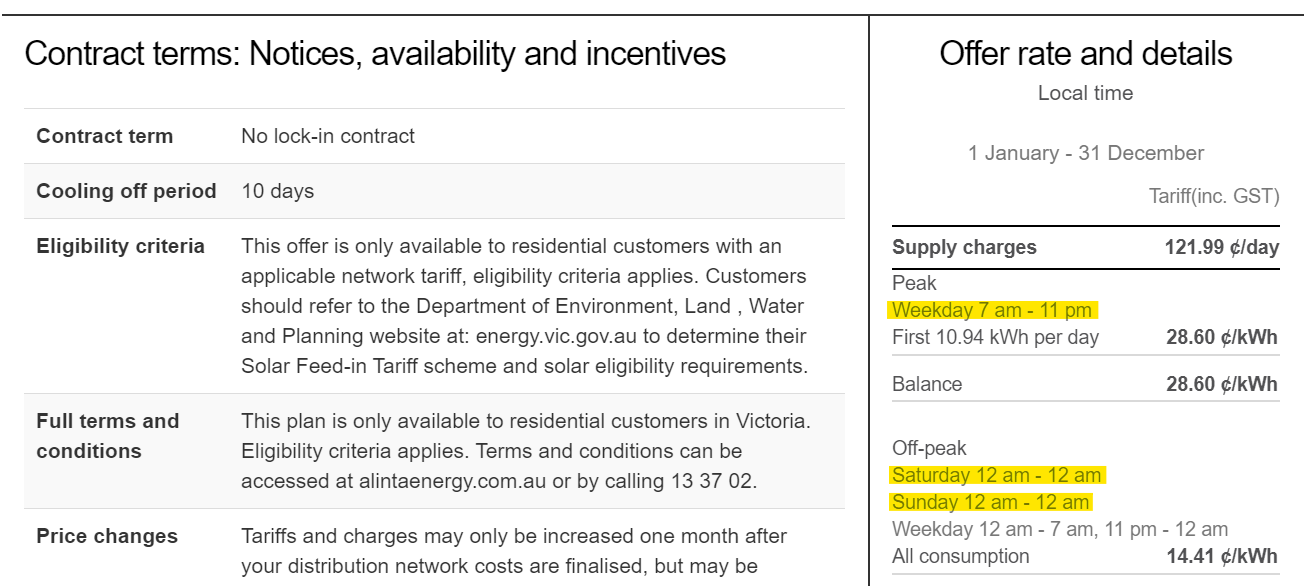
Location 4: Energy Retailer Website
Section titled “Location 4: Energy Retailer Website”If you cannot find your time of use information from any of the above locations you can try looking at your energy retailer website. The time of use times will be located in the terms and conditions of the energy plan that you are on.
Location 5: Wattever
Section titled “Location 5: Wattever”If you can’t find the details specific to you retailer you can still work them out depending on your location. While it will not show your energy rates ($/kWh) it still gives all the time of use times. Follow the below steps to determine you TOU times.
- Go to the Wattever article on TOU periods - https://wattever.com.au/time-of-use-periods-electricity-network/
- Select the state you are in
- Scroll down to find you electricity network area. Note this is the company you call for a power outage and will be on your electricity bill under a section Call for Outages
- Find an appropriate residential time of use tariff and observe the times in the final column
Filling out the Solar Analytics tool
Section titled “Filling out the Solar Analytics tool”Often the information your retailer provides is not very well formatted and can be difficult to digest. Follow the steps below to easily translate your time of use information into the Solar Analytics tool. Alternatively, check out our ‘How to add Time of Use rates ’ article for more information.
Steps:
- Check if your TOU plan is seasonal. If it is then you will need to create a new energy plan for each season and complete steps 2 - 5 for each season.
- Start with your peak rate for weekdays. Locate the times period it applies and fill it into Solar Analytics
- Next fill in your off-peak rate for weekdays. Note that this is often given as an overnight period (e.g. 10pm - 7am) while we have two periods (e.g. 00:00 - 07:00 and 22:00 - 24:00)
- Check your shoulder times if you have them. If it says ‘all other times’ or something similar you can skip this step
- If you see a term like “working weekdays” or “weekdays excl. public holiday” make sure to select ‘Yes’ for Are public holidays on a weekend rate
- Now go to the TOU: Weekends section
- Fill in your weekend off-peak times. In many this cases this is the same as your weekday off-peak rate
- Check your weekend shoulder times. If your shoulder says ‘all other times’ you can again skip this step
- If you need any further assistance please use the Contact Us button at the bottom of the page