
Communication Offline - How to troubleshoot a 'Communication Offline' issue on a 3G/4G monitoring device?
A ‘communication offline’ message appears when we detect that the Solar Analytics monitoring device is no longer communicating with our servers or sending data to the dashboard. Learn how to troubleshoot a communication offline issue in this article.
To troubleshoot this issue, please follow the steps below:
Section titled “To troubleshoot this issue, please follow the steps below:”-
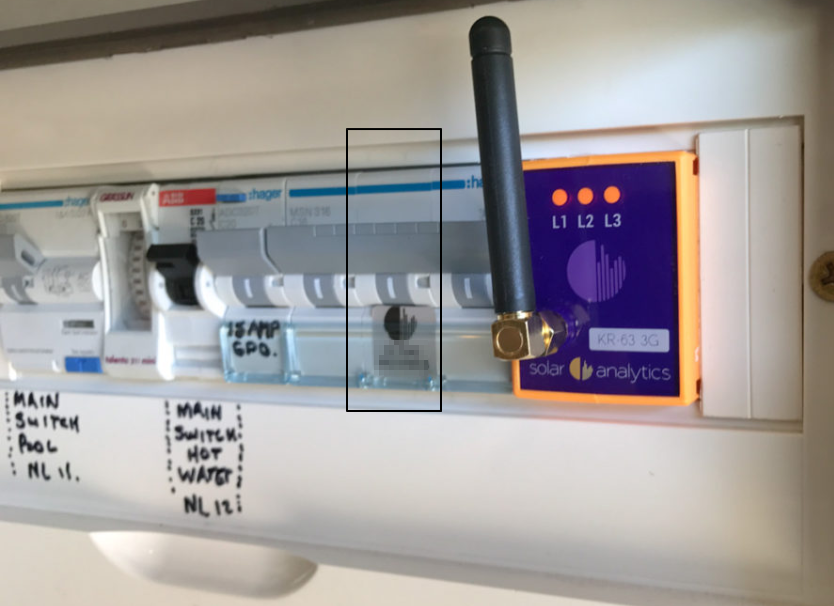
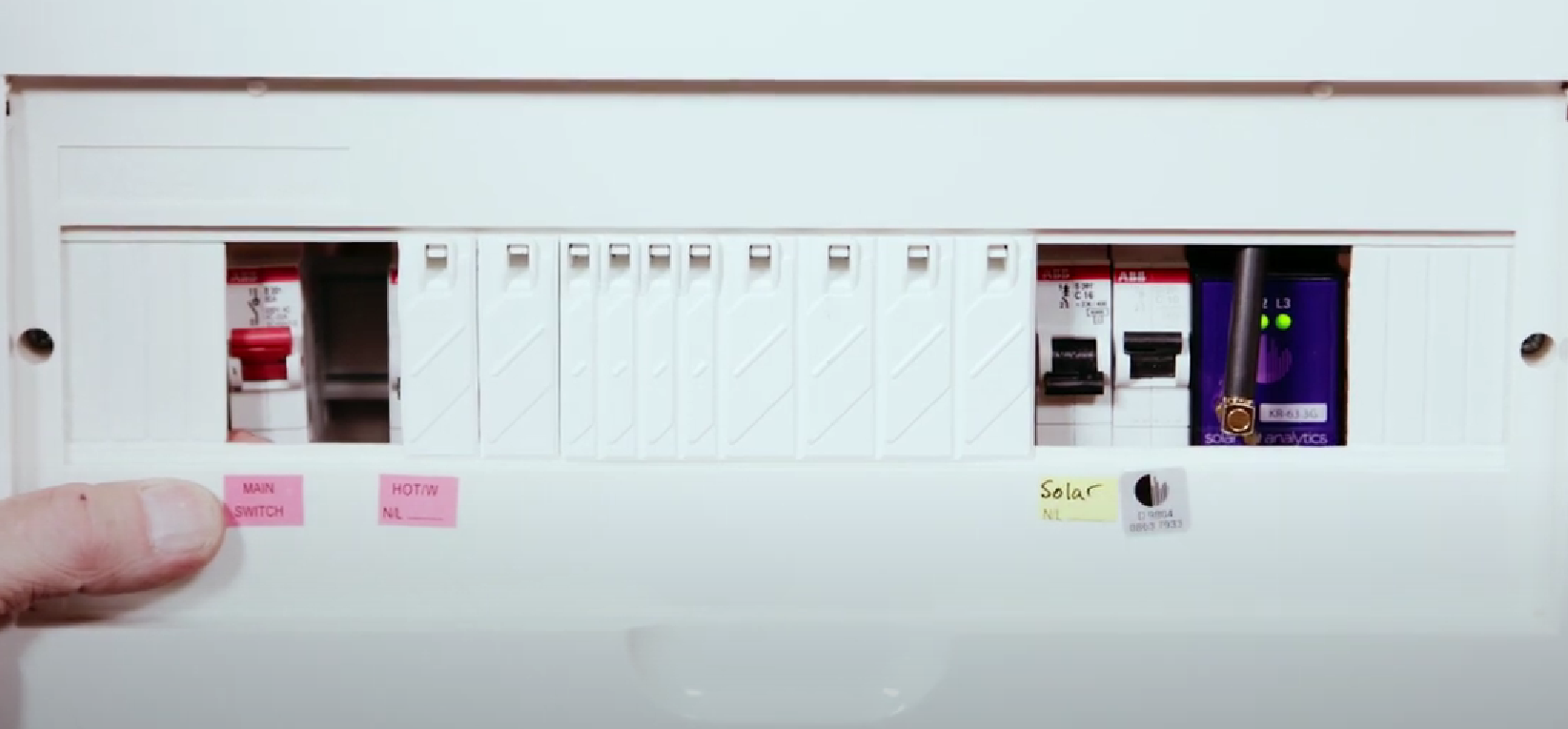
Please go to where your switchboard is, then locate your Solar Analytics monitoring device and the circuit breaker powering it.
In most cases, the installer would have left behind a sticker with a D XXXX XXXX XXXX below or on top of the breaker.
-
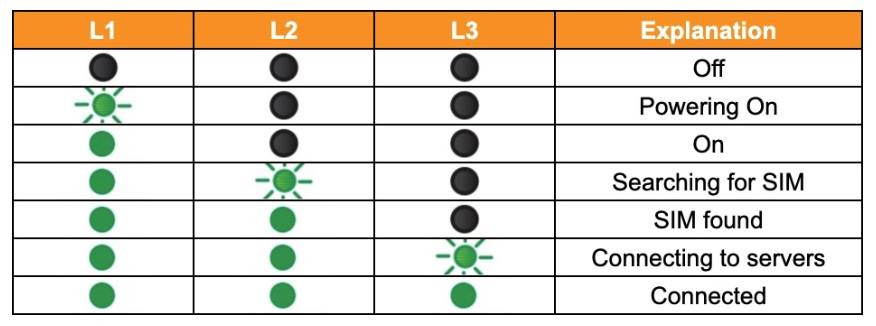
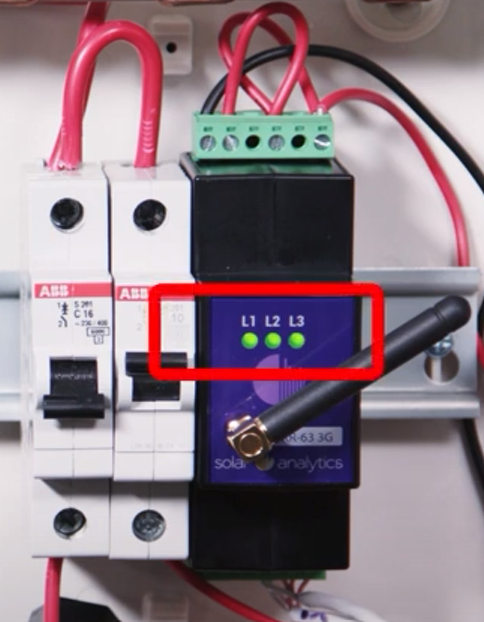
Once you’ve located the device and breaker, please take note of the light indicator represented by L1, L2, L3 on the monitoring device (e.g solid or flashing).
-
Switch off the circuit breaker which is powering the Solar Analytics device. It may take several minutes for all three LED lights to fully extinguish. Keep the device off for a minimum of 20 minutes
- If any of the LEDs remain on (illuminated), it means that you turn off a wrong switch. You can try to turn off another switch until you notice all three LEDs are fully off. Alternatively, you can turn off the entire house supply by switching off the mains circuit breaker which will turn off the electricity in your entire property and hence the monitoring device too. If you are not comfortable with locating or turning off the main supply, please contact your installer for assistance.
-
-
-
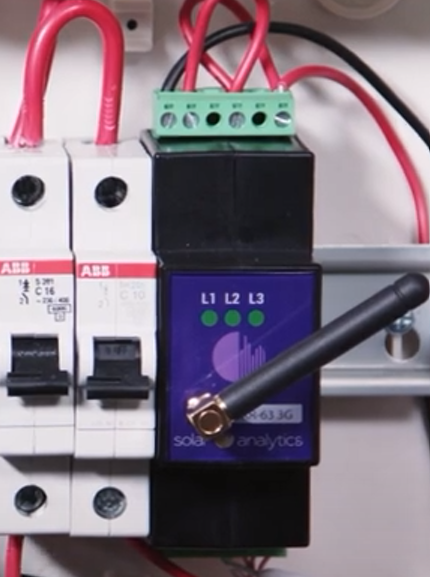
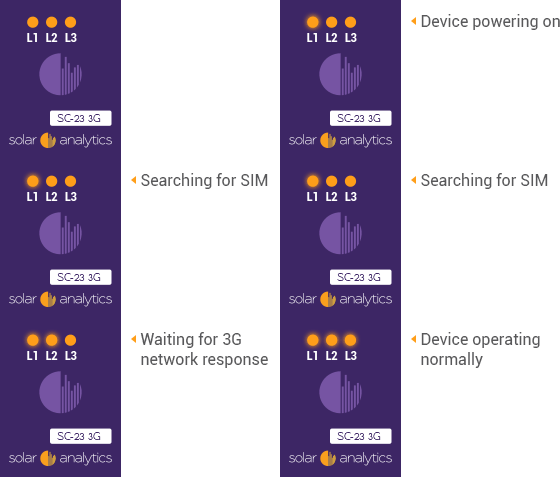
Turn the device back on and wait for 5 minutes. The device will progressively run through a sequence of self tests, indicated by the three lights. A successful power reset will be indicated by all three lights remaining on, with no flashing sequence.
-
-
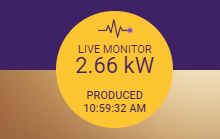
Please visit Solar Analytics dashboard after 15 minutes and check that the Live Monitor is working/updating to confirm that the connection has successfully been re-established
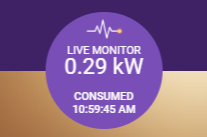
After performing the reset, if all three lights do not stay solidly on after 15 minutes or you still see ‘No data’ on the Live Monitor, please try removing and reattaching the device’s antenna by following the below steps.
- Turn off device
- Remove antenna
- Reattach antenna
- Turn on device
If after following the above sequences the three LED lights do not stay on, please click on ‘Contact Us’ with the following details:
-
Site ID
-
Site Name
-
Is this an OEM integrated or a WattWatcher site?
- An OEM integrated site means that your sitename will start with either Sungrow: or Fronius: or Goodwe: or GE Solar: or LG:
- Wattwatcher site means you have an additional Solar Analytics branded or a Wattwatcher branded analytical tool installed in addition to your inverter.
-
Please attach a photo of the light indicators before and after the reset and one of our support team will get back to you shortly.
⚠️NEW WARRANTY PROCEDURE FROM WATTWATCHERS
If all LED lights are not ON after the 20 minute reset, please redo Step 1 and 2 but keep the device off for 24 hour before doing Step 3.
Wattwatchers will check the logs of reboots to ensure the steps are done correctly, otherwise warranty will be voided.
Troubleshooting a Wattwatcher-branded Device
For owners who have a Wattwatcher-branded device, Solar Analytics doesn’t have any authority to check any configuration from our end.
Please follow the procedure above and if issue persists, kindly submit a ticket directly to Wattwatchers here
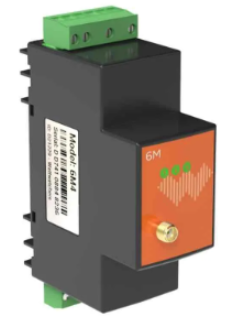
A Wattwatcher-branded device looks like the below photo: