

Sungrow with Solar Analytics - Site Registration
Step 1: Complete PV system installation
Section titled “Step 1: Complete PV system installation”-
Complete PV System installation (as per normal)
-
Commission the PV inverter plant on Sungrow iSolarCloud (as per normal).
-
Connect the inverter to the owner’s Wi-Fi/LAN network or 4G network via dongle.
Step 2: Share the plant with Solar Analytics
Section titled “Step 2: Share the plant with Solar Analytics”On your Sungrow iSolarCloud APP or Website installer account:
-
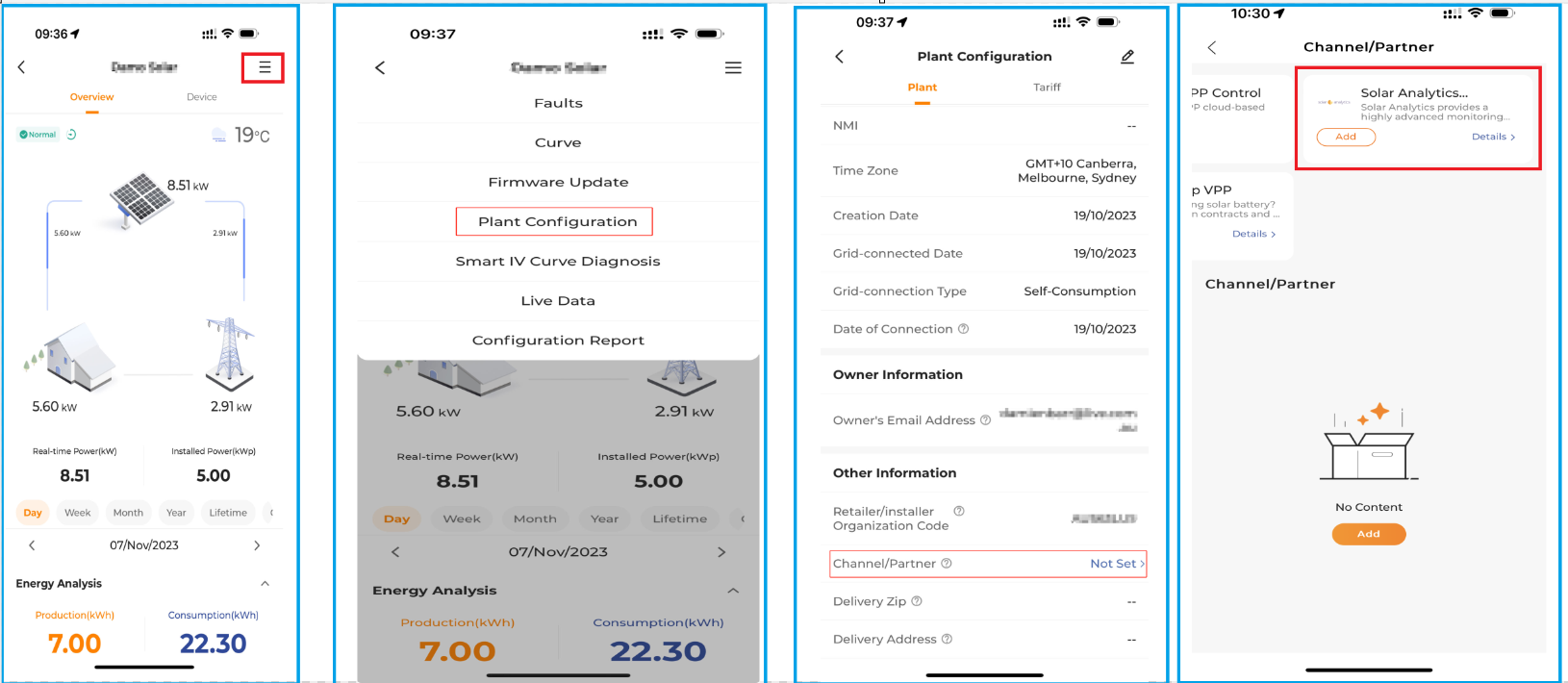
Select the Plant,
-
Open Options,
-
Select Configuration > Plant
-
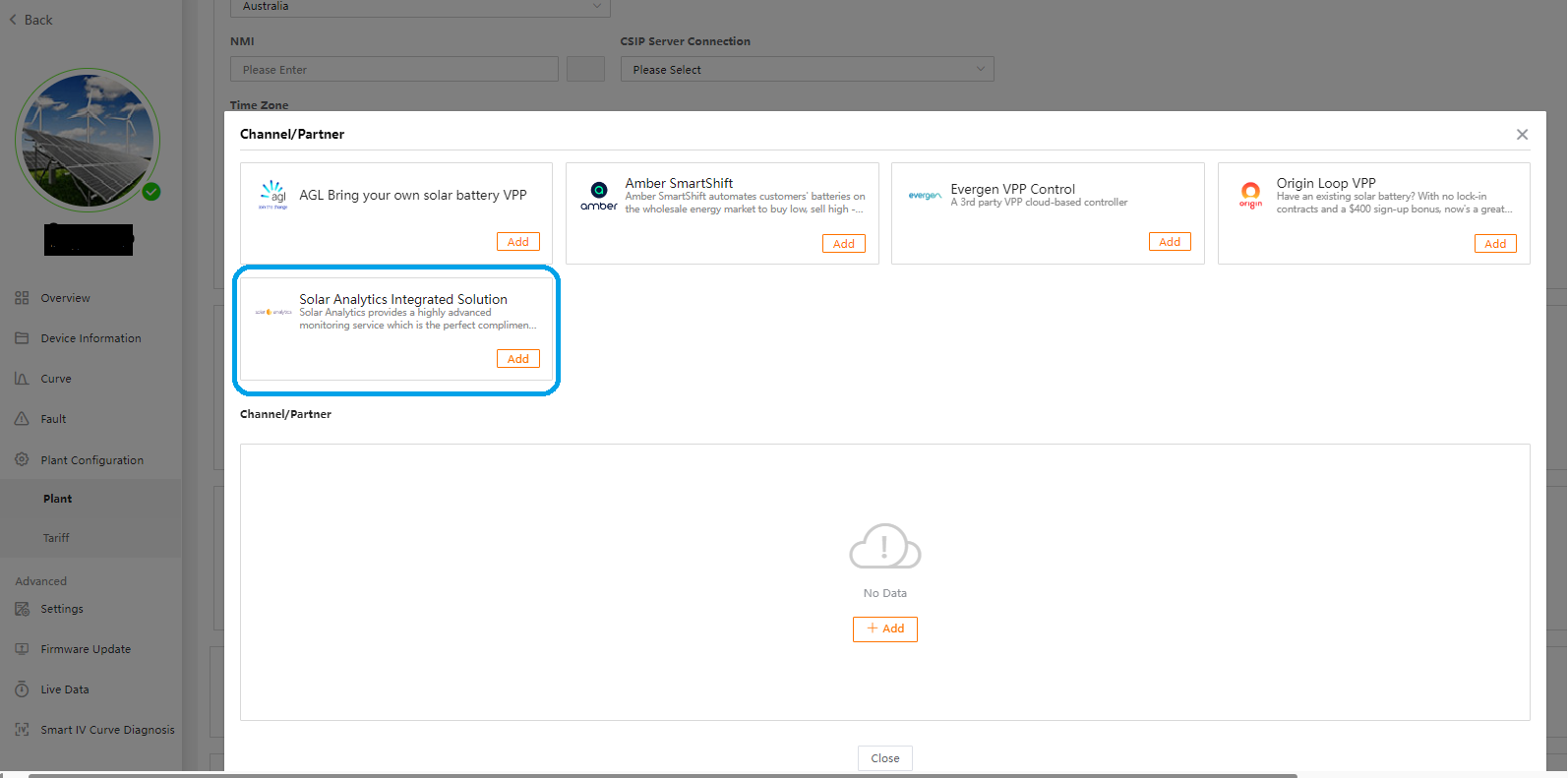
Select Channel/Partner
- Add new Channel/Partner (one-time requirement)
- Add Solar Analytics **sungrow@solaranalytics.com**as a Channel/Partner.
- Select Administrator access
- Press Confirm*
Note: The PV system has to be online at the time of sharing the site.
- For customers signing up themselves through the Solar Analytics website, if you do not see the options to share plant, this means you do not have the right access account, please reach out to your installer to provide you access for sharing plant. Or you can ask your installer to share your plant to Solar Analytics on your behalf.
* If you have a Solar Analytics dashboard account the inverter will be ready to be registered to a new site in 3 minutes.
* If you do not have a Solar Analytics dashboard account please contact Solar Analytics support to get a Solar Analytics account.
iSolarCloud Web Portal Screenshots
iSolarCloud APP Screenshots
Step 3: Registering site in Solar Analytics
Section titled “Step 3: Registering site in Solar Analytics”Login to the Solar Analytics dashboard on your fleet account.
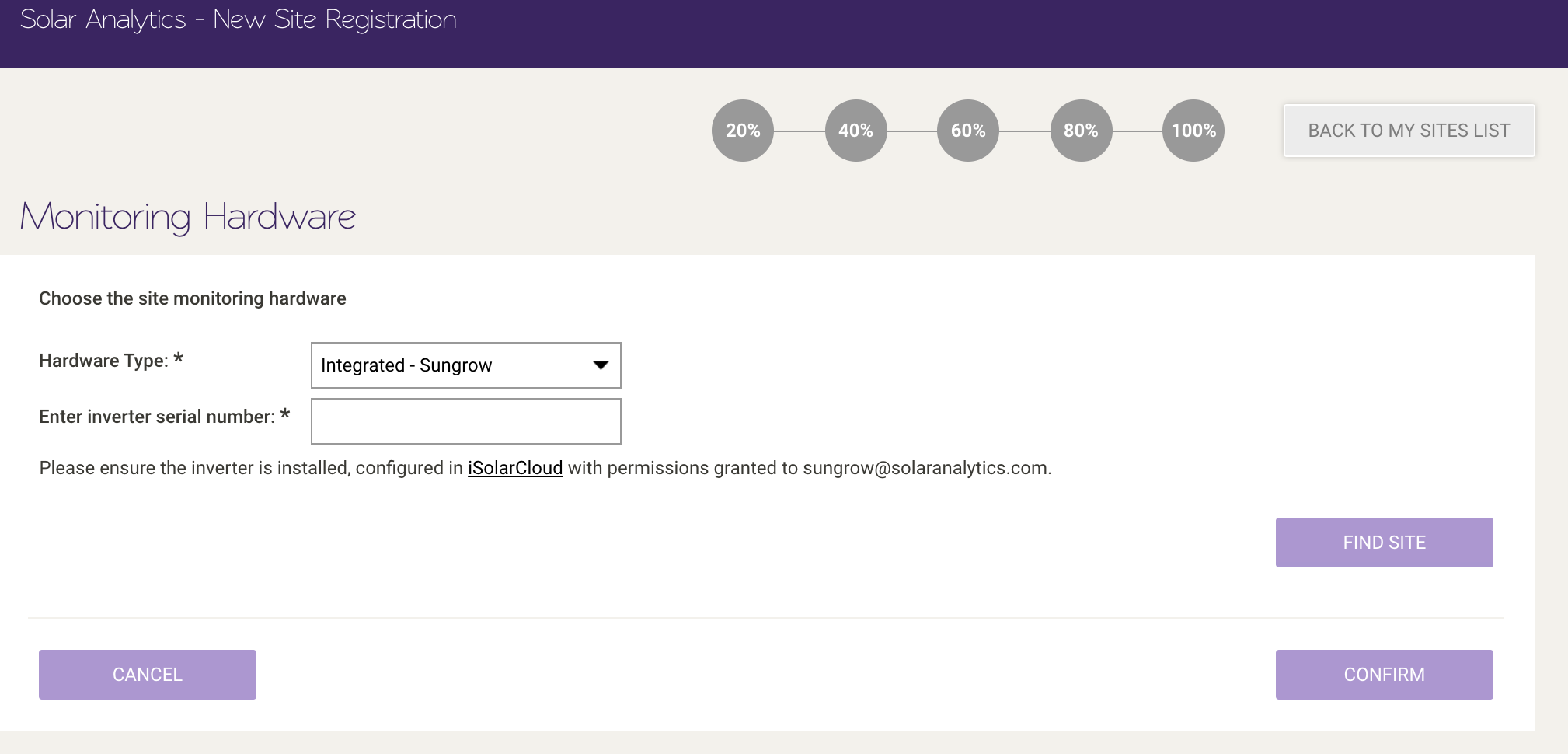
- Click Add New Site
- Select Integrated - Sungrowfor the Hardware Type
- Enter an inverter serial number from the site that you would like to commission
- Confirm the site that we matched by checking the site name and address, and click Next. (if you get an error, please follow the troubleshooting steps displayed on the screen - more information)
- Fill in the requested details for the next consecutive steps: customer details -> site details -> panel details -> subscription selection.
- Select the subscription and click Finish(enter credit card details if requested to pay for the service)
Screenshots:
Step 4: Post commissioning
Section titled “Step 4: Post commissioning”- An invitation is sent to the site owner to create a password for access and to accept Solar Analytics Terms & Conditions.
- Notification is sent to Solar Retailer upon Owner acceptance of T&C.*
- The solar owner now has full access to the dashboard for the duration of the subscription
* Reminder notifications sent to Owner and Retailer if not accepted after 7 days.