

Team Management
As your solar company’s staff come and go or change roles, it’s important that their level of access to your fleet’s sites is adjusted accordingly to keep the data secure. Solar Analytics offers four levels of user access to your fleet of accounts:
- Installer Admin - can create, edit and view sites as well as access user management tools. Renew subscriptions on behalf of site owners and control Production and Performance pages of sites.
- Installer - can create, edit and view sites
- Site Owner - can edit and view their own sites
- User - can view the sites they have access to
The Installer Admin is the highest level of user and can manage your team’s individual access and user types through ‘Teams’ on the menu bar on your Fleet Dashboard. The Installer Admin can add, edit and delete any team member or approved installers, reset passwords, set permissions and assign appropriate sites. In addition to this, Installer Admin can renew subscriptions on behalf of site owners and also control pages (Production and Performance) whether it should be displayed or hidden on an individual site basis.
If you do not wish to give a new user permission to manage team members, please set them up with an ‘Installer’ user type.
All team members can have access to view all sites by selecting ‘All’. However, it is possible to limit the site viewing access for specific users. To do so choose ‘Selected Sites’ and then add or remove sites for that user.
How to add more than one user to a site?
*Please note that this page is for Installer Admin only. If you are unable to view this, please contact the Installer Admin of Solar Analytics dashboard of your company.
In default, a dashboard can only be accessed by reseller and the owner of the site.
However, there have been cases where additional accounts to access the dashboard is needed. This situation usually occurs for:
- Sites own by council
- Sites which subscription is managed by the reseller
Adding a user to access the Solar Analytics dashboard:
-
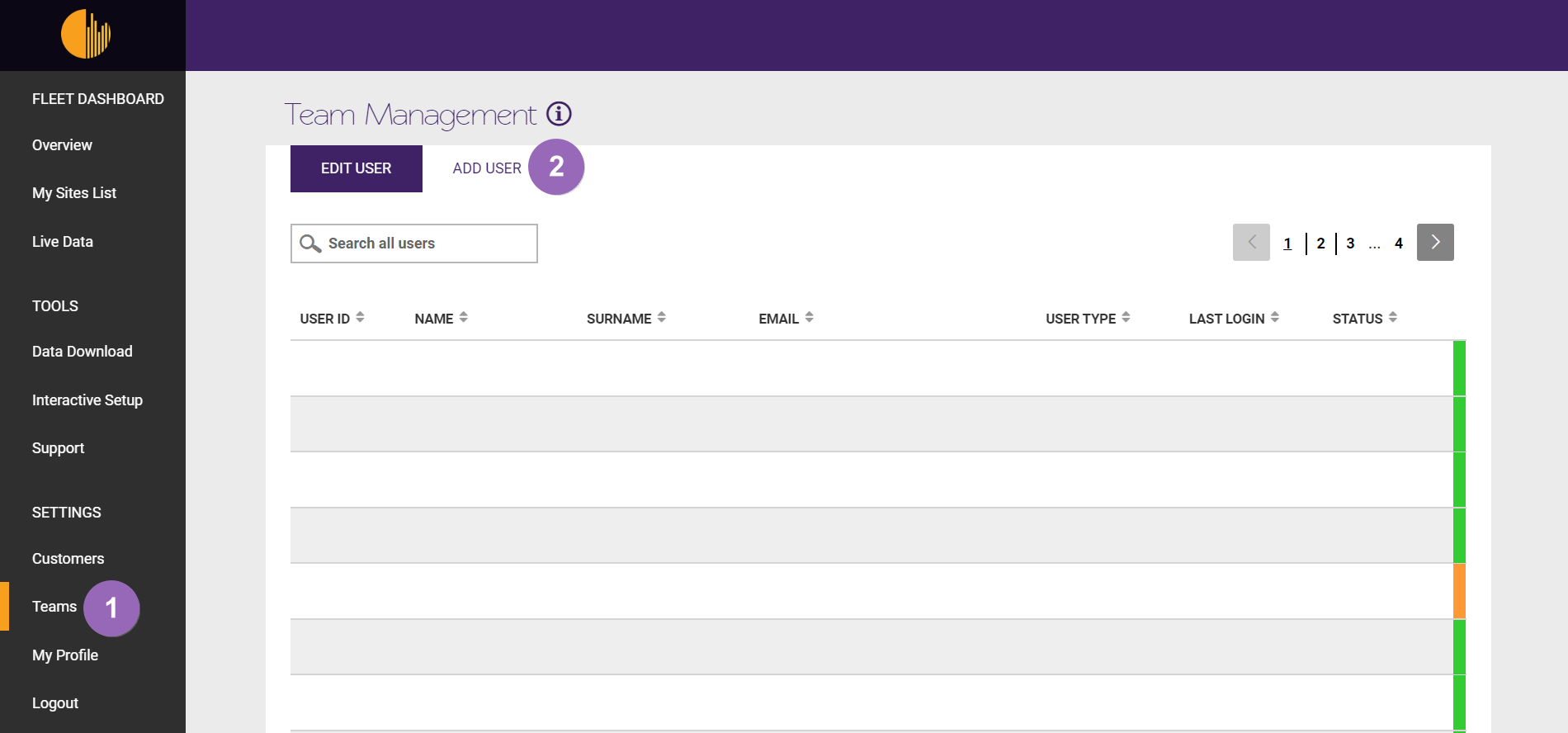
Go to Solar Analytics Fleet Dashboard and click on (1) Teams. Select (2) ‘Add User’.
-
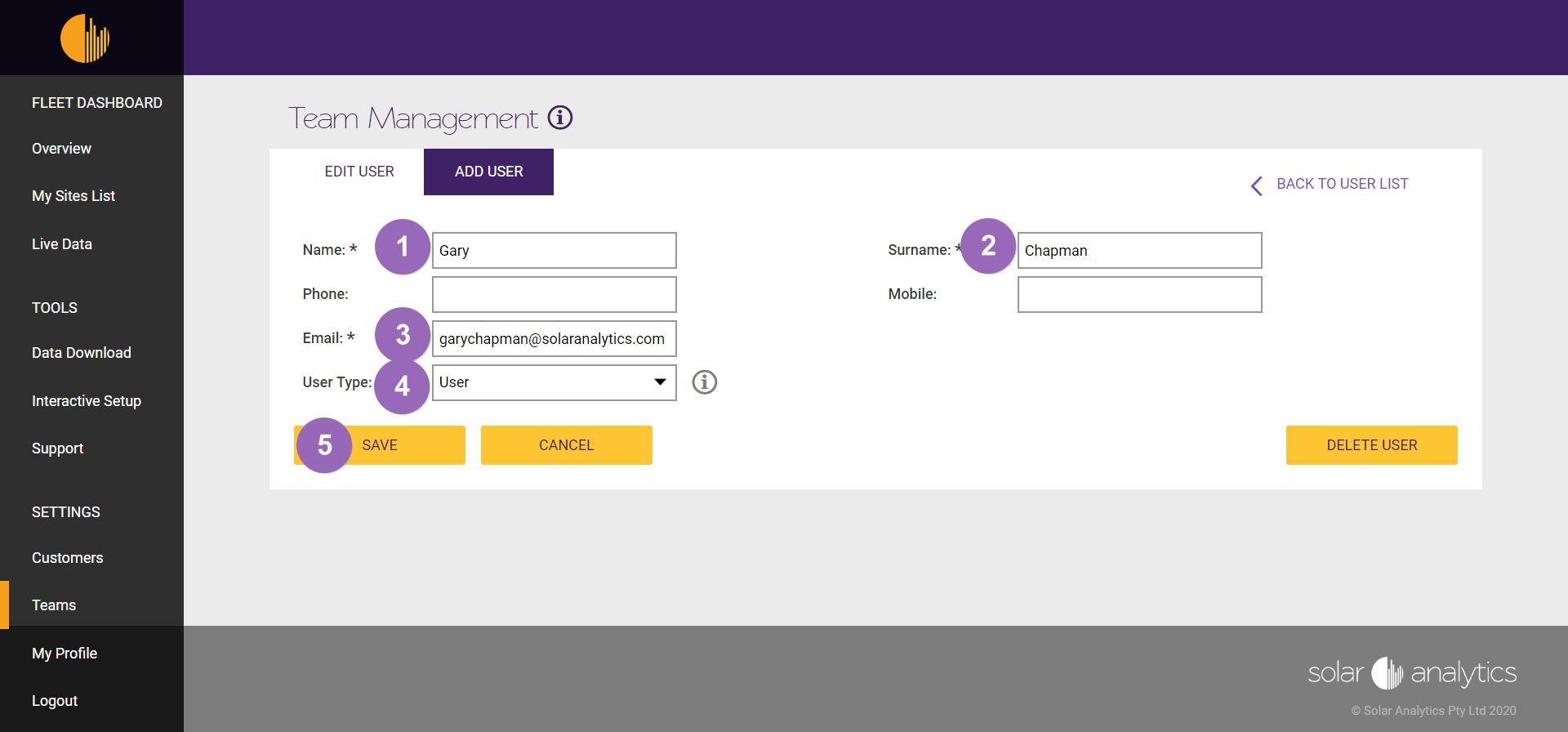
Fill in the Name (1), Surname (2), and Email (3). Make sure the user type is User (4). Then, hit Save (5).
-
After the User is saved, you will need to set Site Access for the User. Make sure the access is to Selected Site (1). Now is the time to assign which site that this new User should have access to by ticking the box (2). When finished, hit Add (3) and then Save (4).
(The Save button will only turn to yellow after sites have been selected and added to this User.)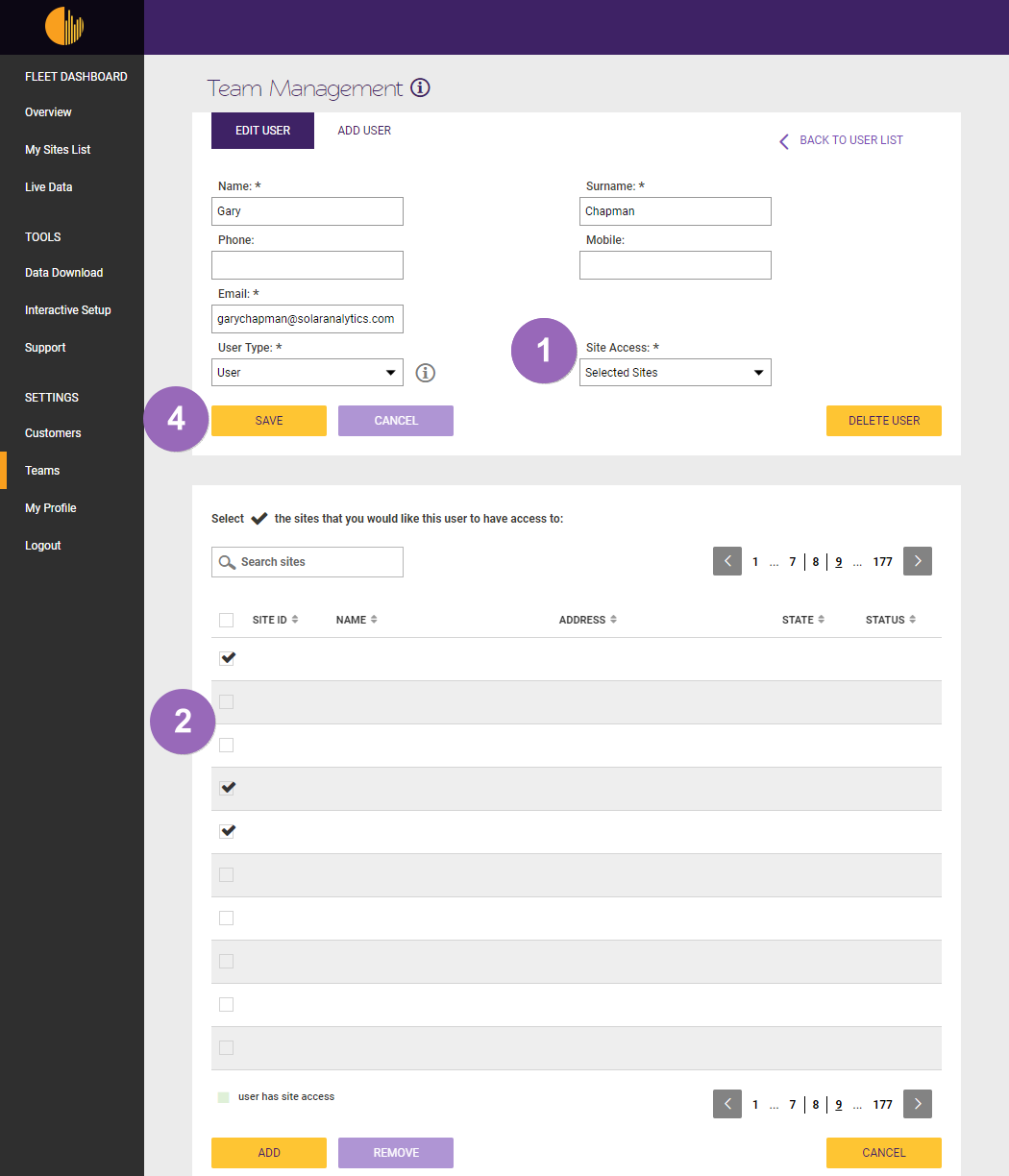
-
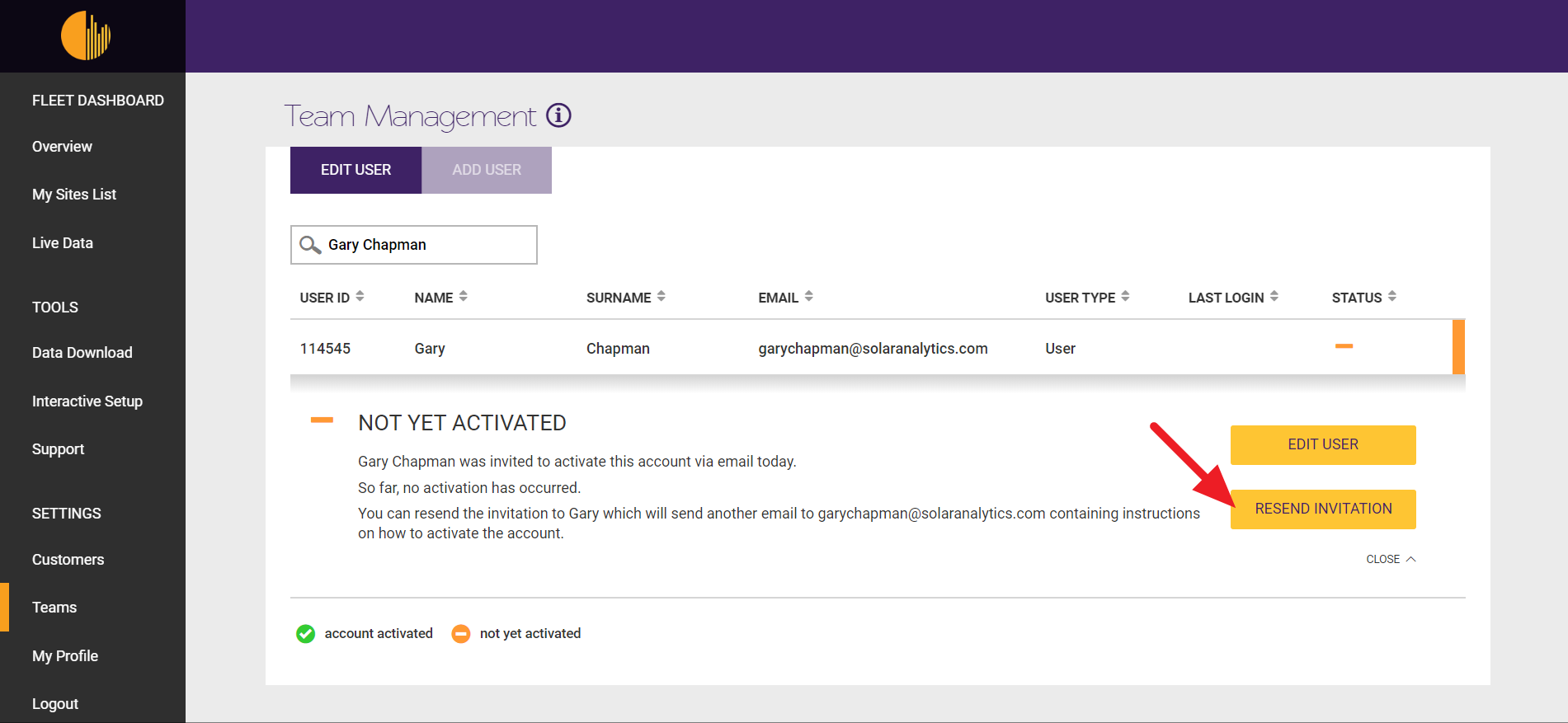
Click Back to the User List, select the newly created User account, and hit the Resend Invitation button. An Invitation Email will be sent and the User need to set up their own password.
If the site is not on the list, that implies:
- The site is yet to be registered to the Solar Analytics dashboard — contact your team to check the status of the registration of the site
- The site belongs to another reseller group — contact Solar Analytics team by submitting a form by clicking the Contact Us button below.
Edit Staff & Installer Details
Section titled “Edit Staff & Installer Details”How to edit a team members account:
Section titled “How to edit a team members account:”-
Search for the team members using their relevant details
-
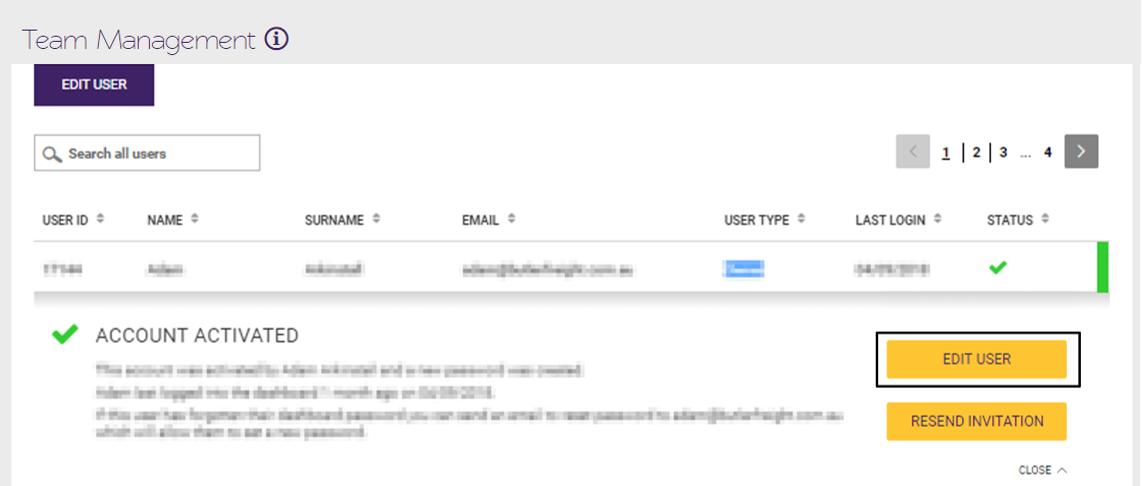
Click on ‘Edit User’ as shown below :
- You can edit any of the fields shown in the edit user page - click ‘Save’ after making any changes.
NOTE: If you are updating an email address, you will need to resend the invitation email to the customer for it to take effect. The customer will then be prompted to reset their password via the activation link provided.
Reset Passwords & Resend invitation emails (staff)
Section titled “Reset Passwords & Resend invitation emails (staff)”How to re-send an invitation email link:
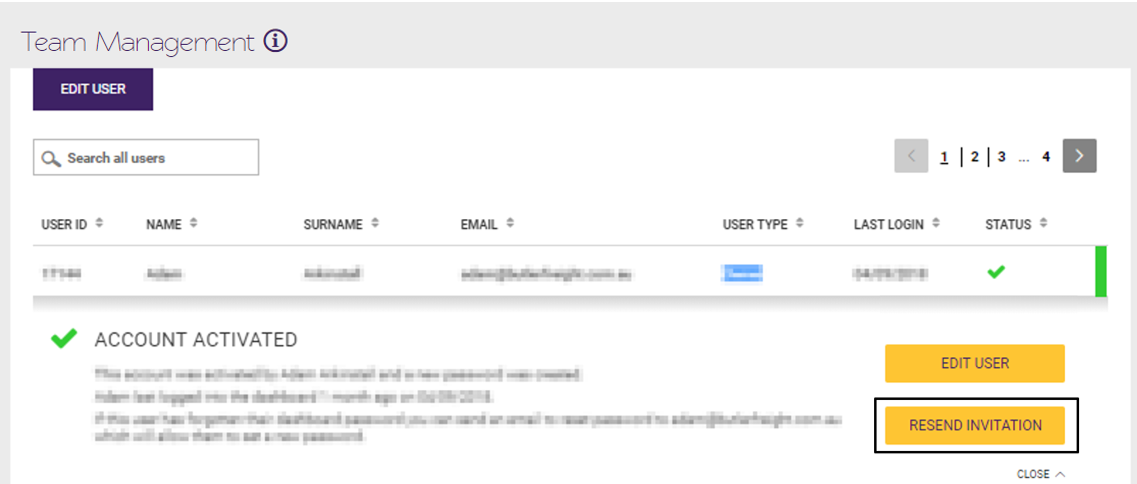
Section titled “How to re-send an invitation email link:”Team members will not automatically receive an activation link when you add them to your team. You will need to click ‘Resend invitation’ as shown below:
How to reset a team members password:
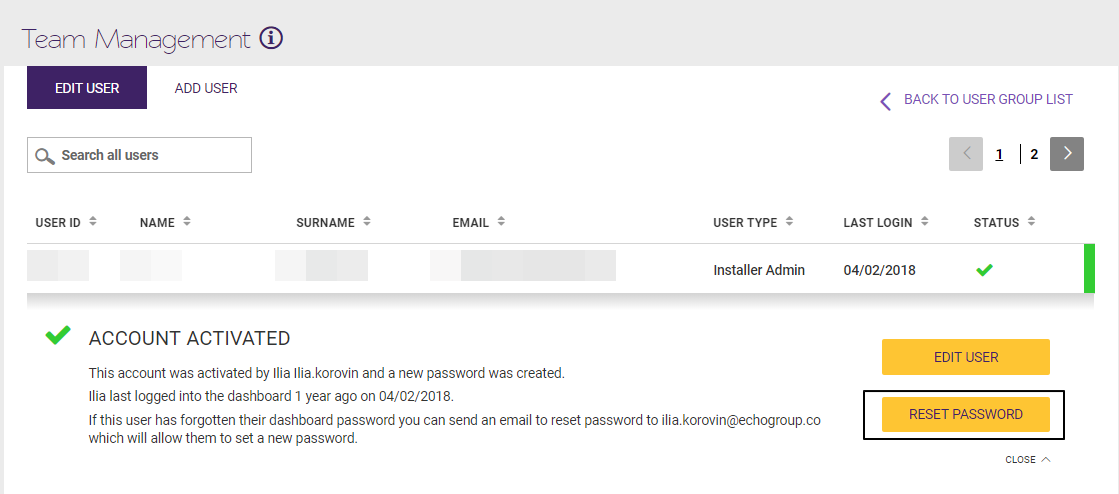
Section titled “How to reset a team members password:”In some cases it may be necessary to reset a team members password, in those cases please search for relevant team member and click on ‘Reset Password’ as shown below:
If a team members account is not appearing or if you are experiencing difficulties with the above process, please contact the Solar Analytics support line on 1300 651 137.