

Customer Management
Introduction: Managing The Customer’s Account
Section titled “Introduction: Managing The Customer’s Account”Customer Management can be accessed from the menu bar on the Fleet Dashboard under ‘Customers’. This tool allows ‘Installer Admin’ user types to manage, edit and view customer user details.
‘Installer Admins’ who have access to Customer Management will be able to:
- search and sort user/customer lists
- reset passwords and resend invitation emails
- view/edit customer details
- add/update email addresses
- add/edit/remove site access
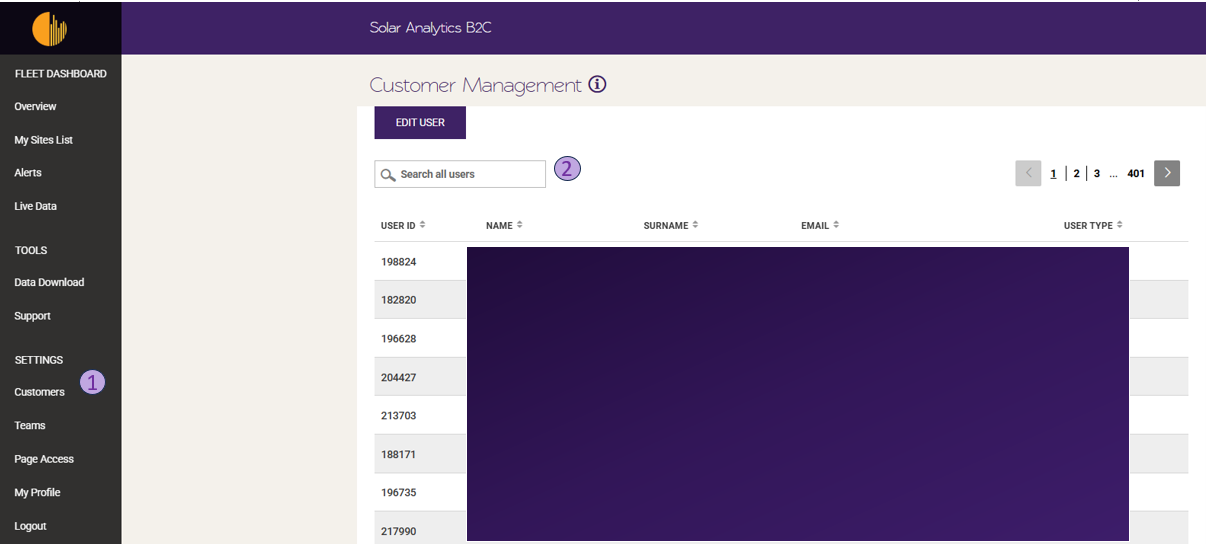
This screenshot shows where the ‘Customers’ button to access the ‘Customer Management’ page is on the Fleet Dashboard, with (1) showing where the Customers tab is and (2) showing where the search feature is.
Edit Customer Details
Section titled “Edit Customer Details”How to edit a customer account:
Section titled “How to edit a customer account:”-
Search for the user using their relevant details
-
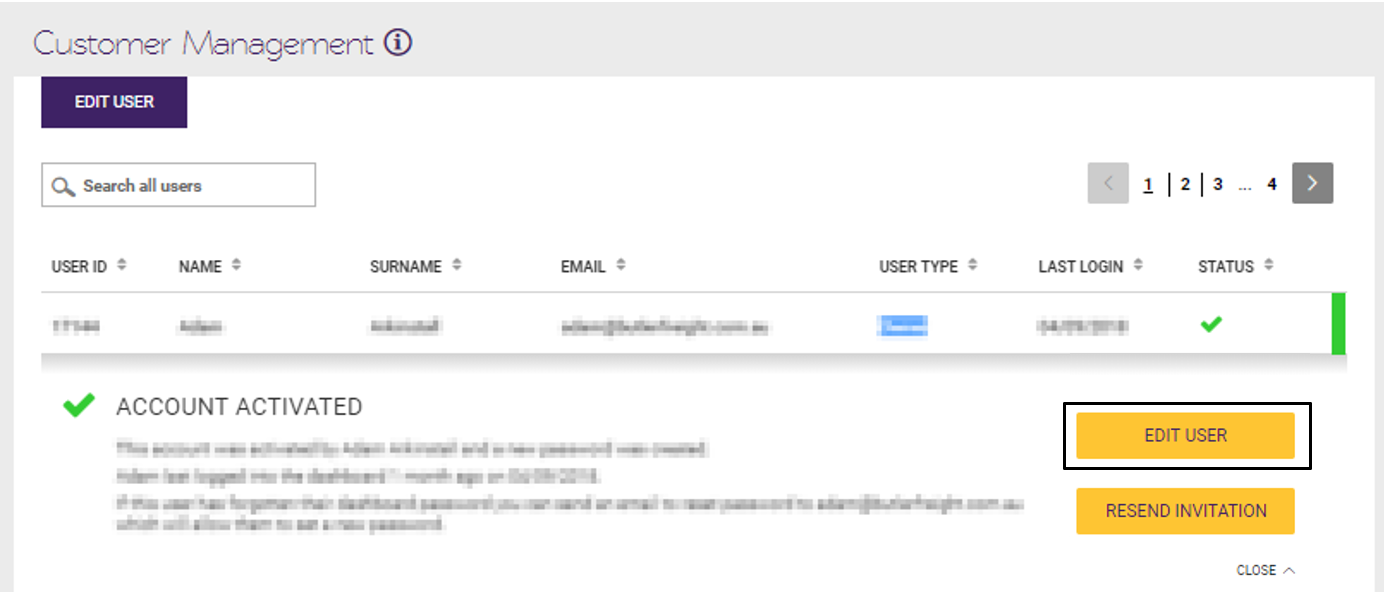
Click on ‘Edit User’ as shown below :
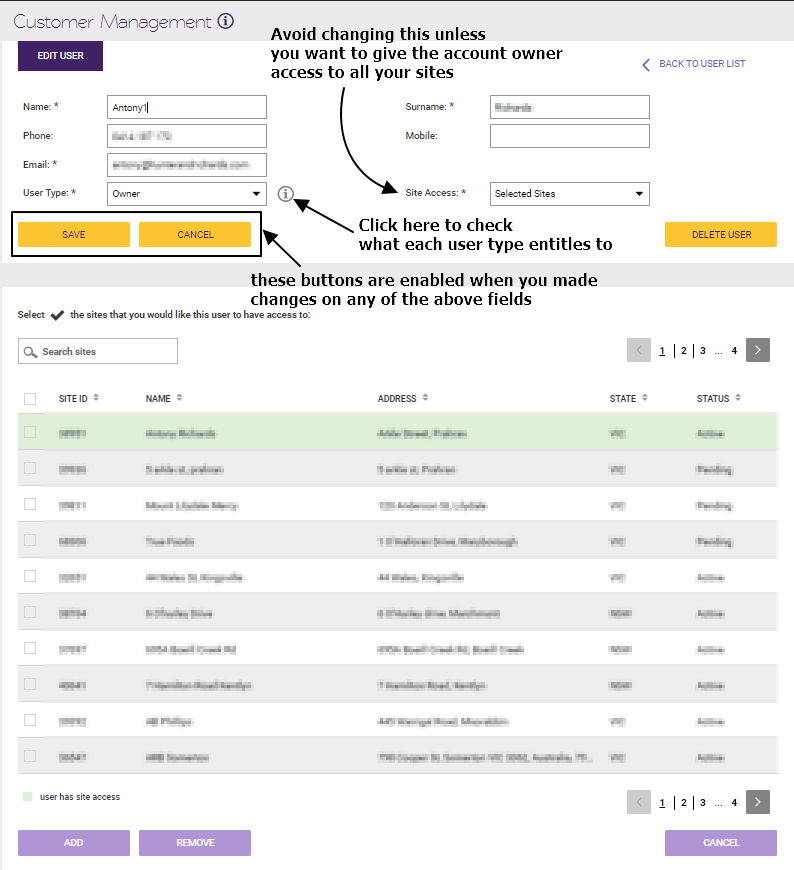
- You can edit any of the fields shown in the edit user page - click ‘Save’ after making any changes.
IMPORTANT: Be wary of altering the ‘User Type’ and ‘Site Access’, as this may give customers access to sites that do not belong to them.
Section titled “IMPORTANT: Be wary of altering the ‘User Type’ and ‘Site Access’, as this may give customers access to sites that do not belong to them.”NOTE: If you are updating an email address, you will need to resend the invitation email to the customer for it to take effect. The customer will then be prompted to reset their password via the activation link provided.
Resending invitation email & resetting password
Section titled “Resending invitation email & resetting password”How to re-send an invitation email link:
Section titled “How to re-send an invitation email link:”Customers will automatically receive an activation link when you commission their site on the dashboard, unless the email was incorrect or has changed, or the address was left blank.
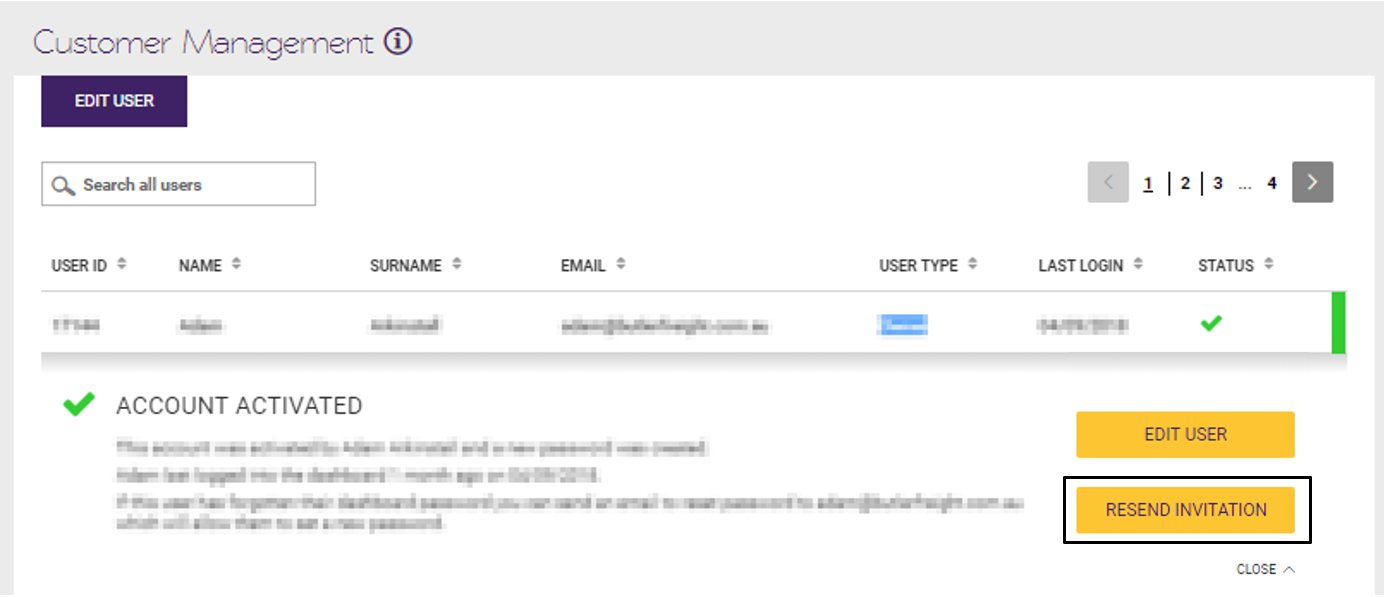
In those situations, please search for the customer’s name first. Make the required changes to the customers details and click on ‘Resend invitation’ email as shown below:
How to reset a customers password:
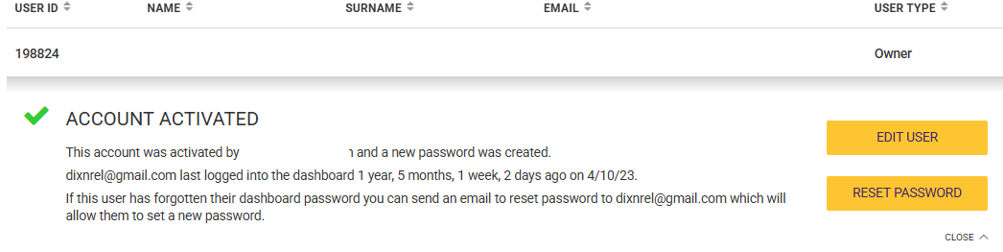
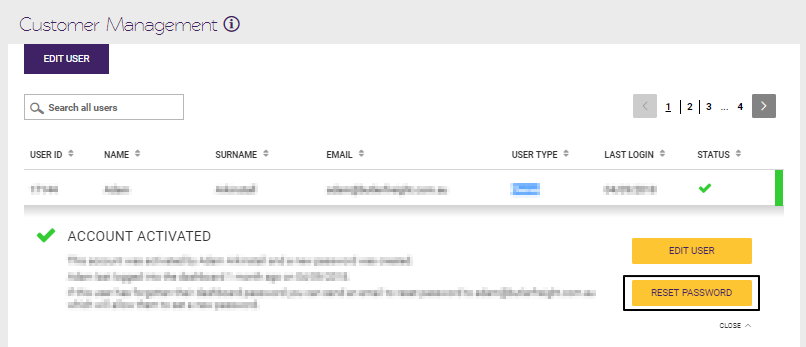
Section titled “How to reset a customers password:”In some cases it may be necessary to reset the customers password in those cases please search for relevant customer and click on ‘Reset Password’ as shown below:
If a customers account is not appearing or if you are experiencing difficulties with the above process, please submit a ticket through the Contact Us button below.