

Adding & Removing Site Access
Adding & Removing Site Access
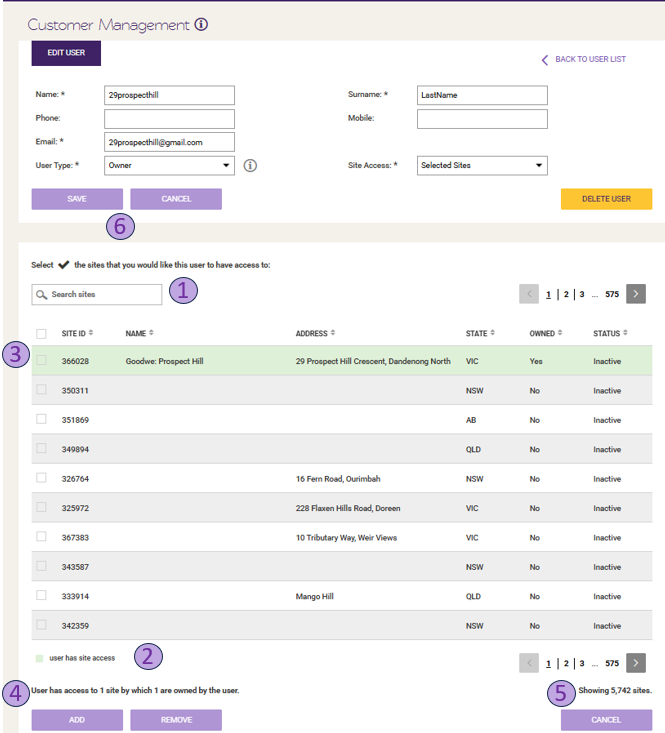
Section titled “Adding & Removing Site Access”Once a customer has been selected, please follow the steps below to add/remove site access on an account. You must click ‘Save’ afterwards to apply the changes:
- Search for the site you are looking to alter the customer’s access to, this can be done using Site Name, Site ID or Address (Green means user has access to site)
- Green means that user has access to that site
- Tick the small square on the left hand side of the Site ID you are looking to alter
- Summary count of user having access to the # of sites
- Summary count of total sites in the fleet
- Don’t forget to click SAVE after changing settings of access
© 2026 CATCH Power & Solar Analytics