

Data Download: Auditing Solar Analytics Subscription
The aim of this article is to help Fleet Manager being on top of the subscription for the sites that they look after.
Solution
Section titled “Solution”The subscription plan for each of the sites under the same fleet can be assessed by downloading the FLEET DATA from the Data Download page.
Please follow the following instructions:
-
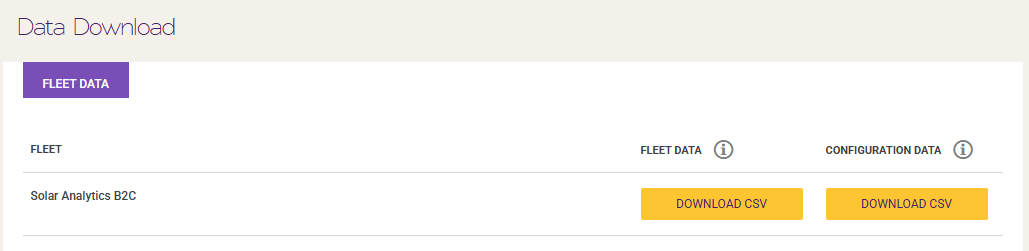
Go to the Data Download section on the Solar Analytics dashboard, and Download the CSV for the ‘FLEET DATA’
-
Open the file on a spreadsheet application of your choice.
-
There are many columns on the spreadsheet, however, we only need to focus on column A (Site ID), B (Site Name), K (Site Type), M (Current Subscription Type), O (Current Subscription Type Length (days)), P (SA Next Renewal Date), Q (SA Subscription Status), and AF (Hardware Count)
Please refer to the screenshot of the spreadsheet below.

-
A reminder that the Solar Analytics subscription works for every 1 device. We no longer have 2-for-1.
Let us know if you have any questions by clicking the ‘Contact Us’ button below.
The sample file can be downloaded below.