

Monocle, Configurator & MyFleet apps
About our apps
Section titled “About our apps”We provide a variety of different software applications serving different purposes and in some cases with different features.
- “CATCH Power Configurator” is used for setting up the hardware while you are on site via Bluetooth. Watch the video here.
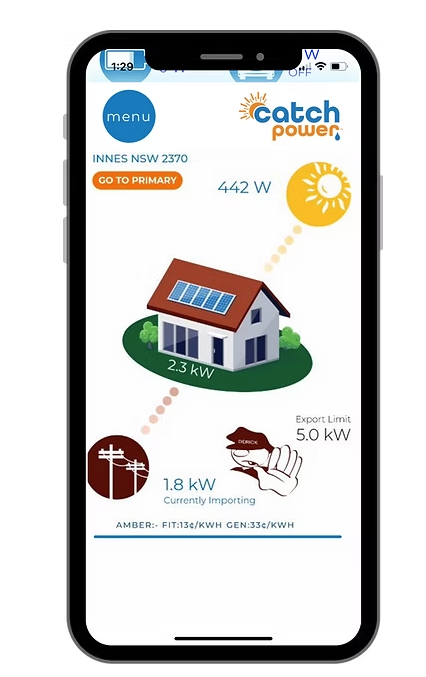
- “The Monocle” is the CATCH Power monitoring platform used by you and your customer for consumption monitoring and load control via WiFi. Watch the video here.
- “My Fleet Manager” is where you can log in to view your fleet. My Fleet provides historic site data while allowing you to monitor and make changes to your sites remotely. Watch the video here.
Important details
Section titled “Important details”- The Monocle and Configurator apps are suitable for mobile devices only (smartphones and tablets)
- The MyFleet and Solar Analytics apps can be used on mobile or desktop
- It is critical that you download and create a Configurator “Installer Account” FIRST before any other accounts
- The same login is then used for Configurator, Monocle and MyFleet
- All CATCH Control sites are automatically replicated and created in Solar Analytics .
- An Analytics Fleet account can also be created (if preferred) ensuring all sites go into a single fleet for you. Please contact us to set this up.
- It is critical that mobile devices are operating on the latest software to ensure our apps operate correctly.
- If you have multiple contractors doing work for you then we suggest you create a single company wide account and have everybody log in using that account.
- Check your email address before pressing save…an incorrect email address is going to mean you miss out on heaps of cool features
- The configurator will keep you logged in for a few days, but for security reasons it will ask you to re-login every now and then, so you need to store the username and password away somewhere.
1. Creating an Account
Section titled “1. Creating an Account”Open the CATCH Power Configurator App and follow these steps:
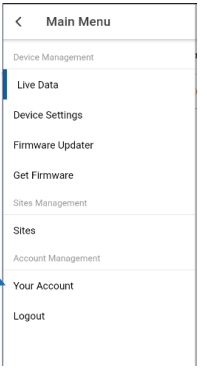
Open the main menu at the top left
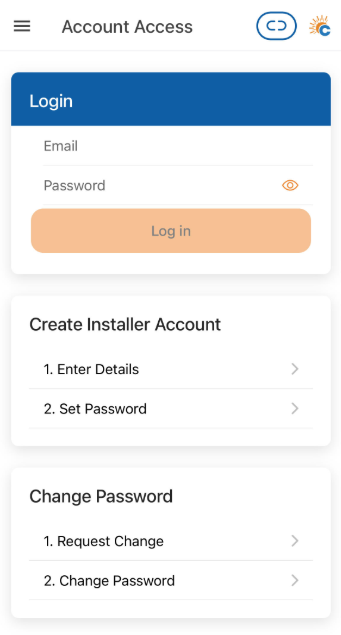
Choose the Your Account tab and then under Account Access:
-
- Enter or modify your details (if you already have an account) or
- Create a new account (if this is your first time)
- Enter your details and hit save
- You will receive a 6 digit activation code via email to verify your account.
- Your registration is now complete an can be used to login to Configurator, Monocle and MyFleet
Watch the creating an account video here
2. Manual changes within Configurator
We strongly recommend using our Wizard for commissioning hardware.
However, once you have commissioned a device you may need to manually enter or change details in the Configurator. The following explains the steps to do this.
- Open the configurator app and login
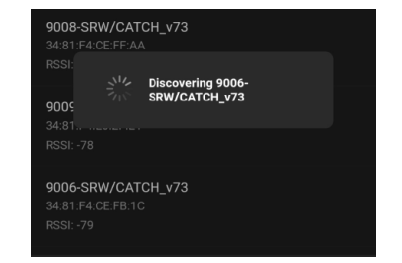
- Hit Connect to device, which will initiate a scan for nearby devices
- Choose the appropriate device
- The Bluetooth LED should light up
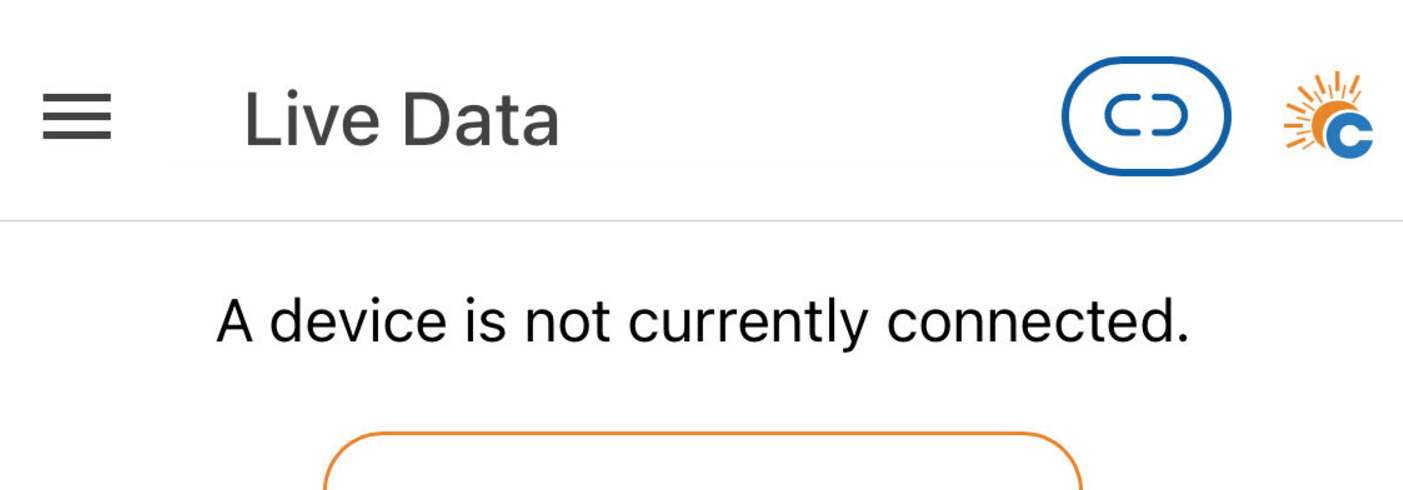
- Once logged in you should be at the Live Data screen where you can view 1 second data. If you are not at the Live Data Screen, use the main menu top left to take you there.
- Via the main menu, navigate to Device Settings where you can add or modify all overrides, inverter and connection settings, incuding WiFi access settings.
NOTE: If you have trouble initialising a connection, close the app, restart and rescan.
© 2026 CATCH Power & Solar Analytics