

Fronius with Solar Analytics
Introduction
Section titled “Introduction”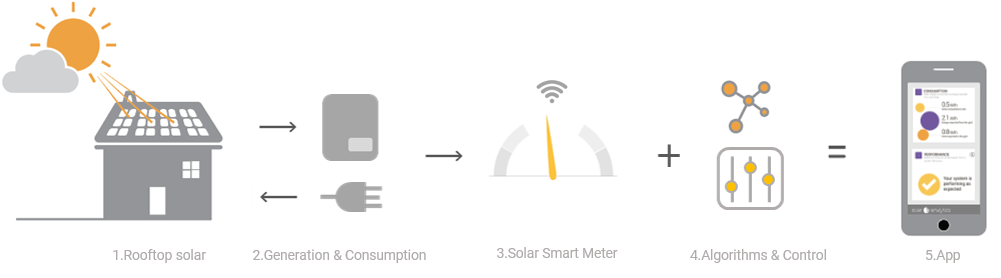
Integrated Solar Analyticsoffers Solar Analytics’ solar management dashboard seamlessly integrated with Fronius residential inverters.
How does it work?
Section titled “How does it work?”Solar resellers can opt to install Fronius hardware (i.e., inverter, consumption/energy meter, and communications dongle) to collect data rather than standard Solar Analytics Solar Smart Meters.
Data is transferred between the inverter and Solar Analytics dashboard via API (Application Programming Interface). The simplified steps to using this service are:
- Ensure you have created Fronius and Solar Analytics logins
- Ensure Installers have gone through the training presentation
- Sell solar system and include Solar Analytics Subscription
- Purchase and install Fronius hardware via your normal channels
- Commission Fronius PV system on Solar.Web
- Add Solar Analytics access to the PV system using email fronius@solaranalytics.com with Supervisor permissions.
- Commissionthe site with requested details on the Solar Analytics dashboard under your fleet by clicking Add new site.
- Reseller paysSolar Analytics for the subscription.
- Solar owner invited to create a login to Solar Analytics
Prerequisite steps
Section titled “Prerequisite steps”Fleet account set-up
Section titled “Fleet account set-up”- To establish inverter integrated monitoring, you will need a Fronius Solar.Web Installer account and a Solar Analytics Fleet account.
- Please reach out to Solar Analytics support for the Solar Analytics fleet account by submitting a form via Contact us.
Installation requirements
Section titled “Installation requirements”For optimal functionality and to ensure compatibility, please note the following requirements:
- Currently, we support all new Fronius inverters from the year of release 2018.
- It is the owners’ responsibility to maintain a functional internet connection to the inverter. Resellers need to ensure owners understand this responsibility and/or support them in ensuring connection.
- Temporary commissioning of sites on Solar.Web (e.g. via installer hotspot) is not permitted and will be rejected by Solar Analytics.
- The site must be shared with the Supervisor’s permission.
- It is a must to commission the inverter and all the Fronius hardware on Solar.Web with all the details.
- Mixed single Hybrid and PV Grid-tie Inverters on one site is supported.
Currently, our service does not support:
Section titled “Currently, our service does not support:”- Multiple hybrid inverters on one site
- Mixed-use of Fronius hardware and Solar Analytics classic solution (Solar Smart Meters) on the same site
- Mix of Fronius and non-Fronius inverters on the same site
- Currently, Fronius integration does not support AC-couples battery systems.
Fronius with Solar Analytics - Site Registration
Section titled “Fronius with Solar Analytics - Site Registration”Please follow the steps below to commission the site on the Solar Analytics dashboard.
Step 1: Complete PV system installation
Section titled “Step 1: Complete PV system installation”- Complete PV System installation (as per normal)
- Commission the PV system on Fronius Solar.Web (as per normal)
- Connect the inverter to the owner’s Wi-Fi/LAN network.
Step 2: Share the plant with Solar Analytics
Section titled “Step 2: Share the plant with Solar Analytics”On Fronius Solar.Web Website installer account:
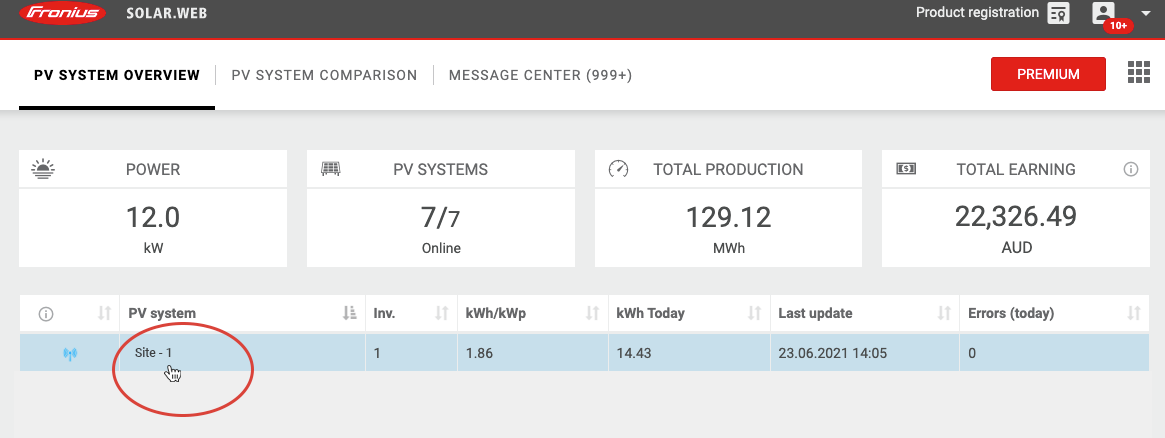
- Select the PV system
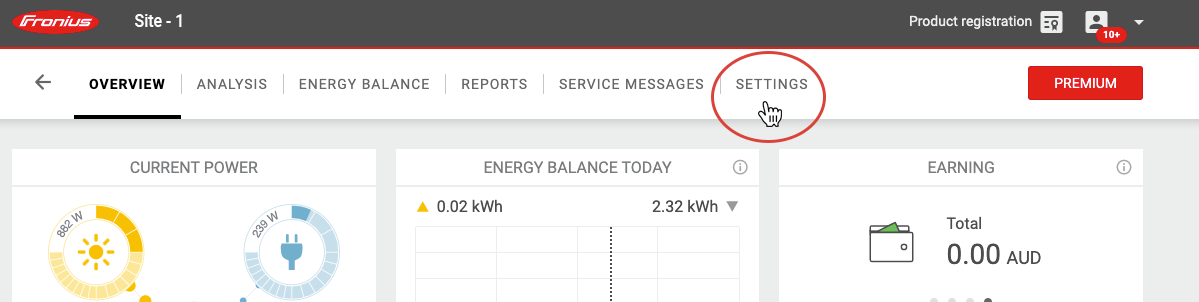
- Open settings
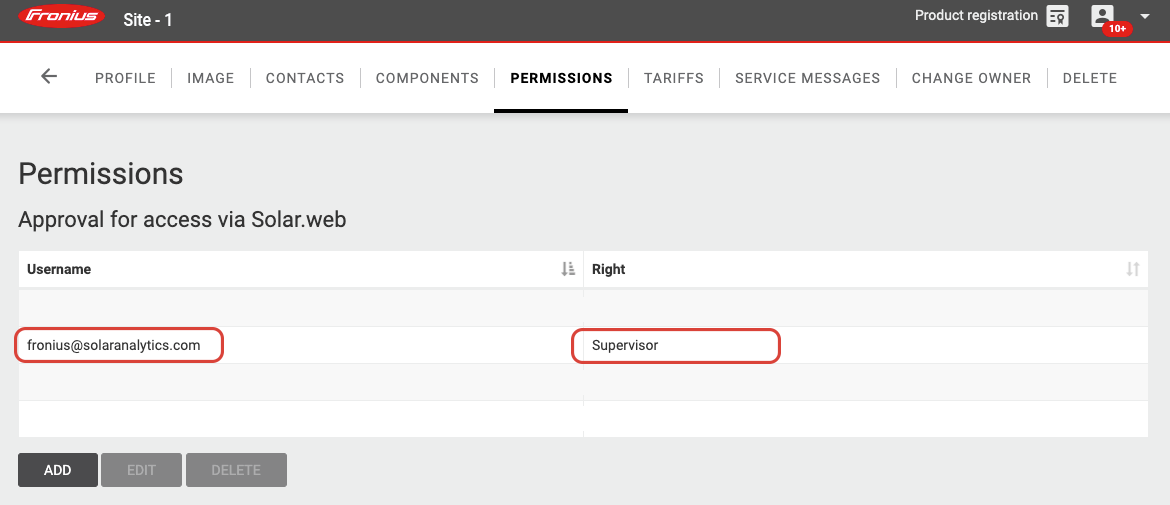
- Select Permissions
- Click **ADD >**add Solar Analytics account on username- fronius@solaranalytics.com
- Set Right as Supervisor
- Click OK
Note:
- The PV system has to be online at the time of sharing the site.
- The site could be shared from Solar.Web mobile application, but you will be redirected to Website view when you try to access the PV system settings.
- For customers signing up themselves through the Solar Analytics website, if you do not see the options to share plant, this means you do not have the right access account, please reach out to your installer to provide you access for sharing plant. Or you can ask your installer to share your plant to Solar Analytics on your behalf.
Screenshots:
Step 3: Commission site in Solar Analytics
Section titled “Step 3: Commission site in Solar Analytics”Login to the Solar Analytics dashboard on your fleet account.
- Click Add New Site
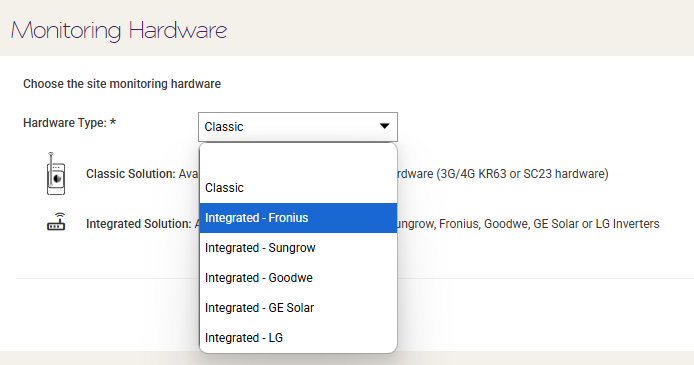
- Select Integrated - Froniusfor the Hardware Type
- Enter an inverter serial number from the site that you would like to commission
- Confirm the site that we matched by checking the site name and address, and click Next. (if you get an error, please follow the troubleshooting steps displayed on the screen - more information )
- Fill in the requested details for the next consecutive steps: customer details, site details, panel details, and the final step is Subscription selection.
- Select the subscription and click Finish(enter credit card details if requested to pay for the service)
Site sharing - troubleshooting steps for Installers with access to Fleet Dashboard
Section titled “Site sharing - troubleshooting steps for Installers with access to Fleet Dashboard”In case you get an error while entering the inverter serial number to find a site match, please follow the guidelines to troubleshoot the issue.
No site match:
Section titled “No site match:”The above message appears if we could not find any site match for the inverter serial number you have entered.
- Please check the serial number entered.
- Please ensure this inverter is configured in Fronius solar.web. Ensure the inverter is connected to WiFiand onlinebefore sharing the site with us.
- Please confirm if the plant is shared with the correct email ID: fronius@solaranalytics.com with Supervisor access.
- If you are commissioning a site monitored by a Solar Analytics Smart Solar Monitor device, please select “Classic” as the Hardware Type on Step - 0 of the site registration.
Unsupported Inverter model:
Section titled “Unsupported Inverter model:”The above message appears if the site is shared with the inverter, which is not on our supported list.
- Currently, Integrated Solar Analytics - Froniussupports all the inverters from the release date of 2018.
However, in case if you get an error message with the latest inverter that you have installed, please contact Solar Analytics support through contact us and request to update the inverter information on our system.
Mix of online/offline Inverters
Section titled “Mix of online/offline Inverters”Solar Analytics integration does not support when the site is shared with a mix of online and offline inverters.
- Please ensure all the inverters are onlineand connectedto the internetwhen sharing the site with us.
Inverter serial number already taken
Section titled “Inverter serial number already taken”In case if you get the above message, then follow the steps below,
- The inverter may be partially commissioned. Please search for the site in the pending sites list on the Solar Analytics fleet with the site name, and continue with the site registration.
- The inverter may be fully commissioned. Please check the site on the active list.
- If you could not find the site either on your pending or active list, please contact Solar Analytics support through contact us.
Multiple Hybrid inverters
Section titled “Multiple Hybrid inverters”Currently, we do not support this setup. However, we are always looking for opportunities to improve our capabilities. If you would like to collaborate with us to implement support for your site, please contact Solar Analytics product management at product@solaranalytics.com.
Night mode function
Section titled “Night mode function”Some inverters are equipped with a Night mode function where it could be set to on or off. If consumption data is not getting monitored for a site even with energy meter installation during non-solar production hours, please check the Night mode function on the inverter.
- When Night Mode is OFF, the inverter stops transmitting consumption data (nothing showing in Solar Analytics dashboard or SolarWeb). However, it will backfill in the morning when power is restored.
- When Night Mode is ON, overnight consumption data will be sent from the inverter and can be on the Solar Analytics dashboard.
Fronius with Solar Analytics - Inverter Update
Section titled “Fronius with Solar Analytics - Inverter Update”Here is the video on how to add / update the inverter on Solarweb:
https://www.youtube.com/watch?v=BEJrnWBuIMQ
Once this is completed, this will be auto-synced and updated with Solar Analytics.