

Troubleshooting a 'Zero Production' issue
A ‘Zero Production’ message appears when our algorithm detects that no energy has been produced from the solar energy system for at least 5 minutes.
Steps to troubleshoot a ‘Zero Production’ issue
Section titled “ Steps to troubleshoot a ‘Zero Production’ issue”- Check Hardware Configuration
- Incorrect channel****labelling:
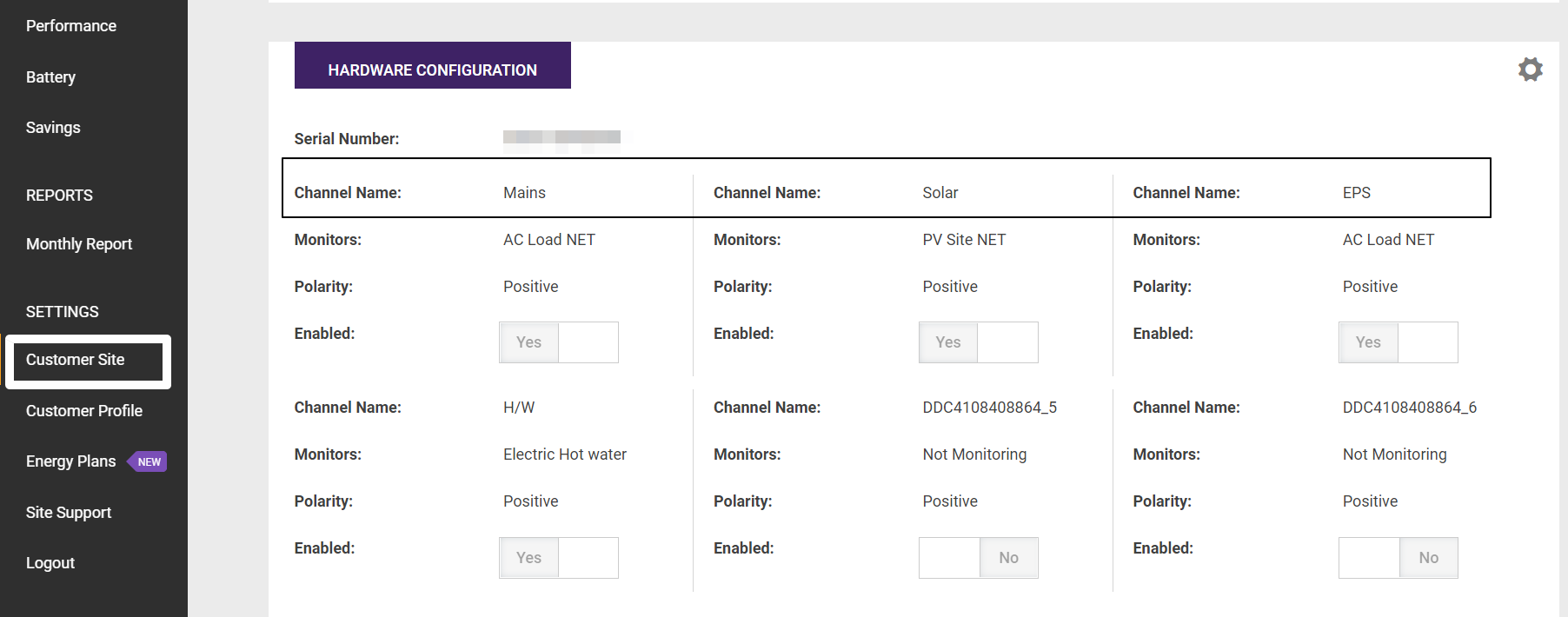
- Go to the ‘My site’ page, and under the ‘Hardware Configuration’ section, ensure that the channels are labeled as per the wiring by your installer. If they aren’t, please click on ‘Contact Us’ below, and our support team will assist you in updating the channel labels.
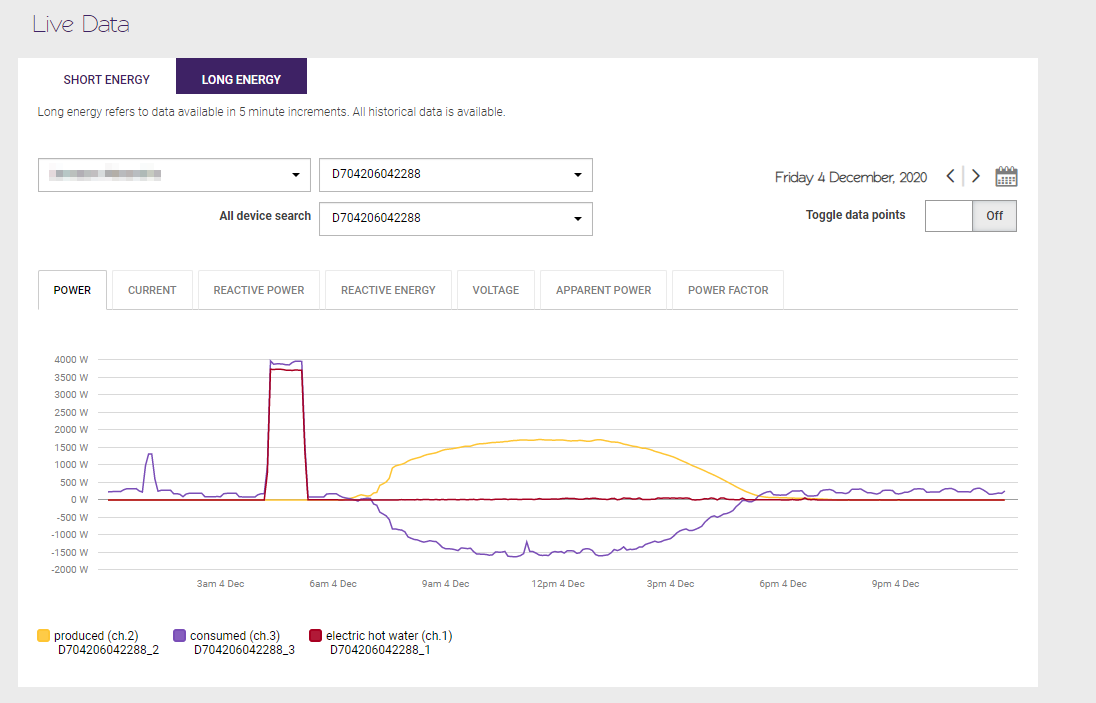
- One way to find out if the channel labels have been mixed up is through the ‘Live Data’ page. If you notice a channel that represents more of a production pattern than what is defined currently, the issue should be resolved by updating it.
- **Note:**Please ignore this step for an Inverter API integration site; the data is received through API calls, and the monitoring device is not included in the API site setup.
- Missing solar energy system details
- Go to the ‘My Site’ page and in the ‘Solar Energy System’ section, ensure that all the inverter and subarray details have been filled in.
- Loose CT
- If you have access to your customer’s online inverter portal, check if the system is currently producing any energy or contact them to check their inverter display.
- If the system is producing energy, then it is likely that there is a loose or broken CT. In this case, you will need to send an installer to the site with a spare CT on hand.
- **Note:**For an Inverter API integration site, the data is received through API calls, and the monitoring device & CTs do not include in this setup.
- Incorrect channel****labelling:
- Check for a weather event
Check the weather at your customer site, it may have been caused by a significant weather event. - Check with your installer if they’ve left the site with the inverter switched off
- Check with your customer for any error code displayed on the inverter
We have informed your customer to check their inverter for any error code fault before contacting you and not to touch anything as a safety precaution.
If you have any further questions, please click on ‘Contact Us’ here below and one of our support team will get back to you shortly.
© 2026 CATCH Power & Solar Analytics